
When you add file upload to your app, you have an important choice. Should you use the simple built-in HTML file input, or a specialised solution like Filestack Picker?
This decision affects more than just how fast you can build it. It also changes how easy it is for users to upload files, what features your app can offer, and how much work you’ll have to manage later.
In this guide, you’ll see the real differences between these two options so you can choose what works best for your product.
💡Tip: If you’re comparing different ways to add file uploads, you can check the Filestack File Upload API to see what features are already included and ready to use.
Key Takeaways
- Native HTML input is simple and free, but requires building and maintaining everything yourself.
- Filestack Picker includes cloud sources, retries, chunking, and built-in security out of the box.
- Large file handling and upload reliability are significantly stronger with Filestack.
- Building a full-featured native upload system can take weeks and ongoing maintenance.
- Filestack reduces development time, infrastructure overhead, and long-term scaling complexity.
Understanding the Basics
Before choosing between these two options, it’s important to understand what each one actually does. Both help users upload files, but they work in very different ways and offer different levels of features and control.
Native HTML File Input
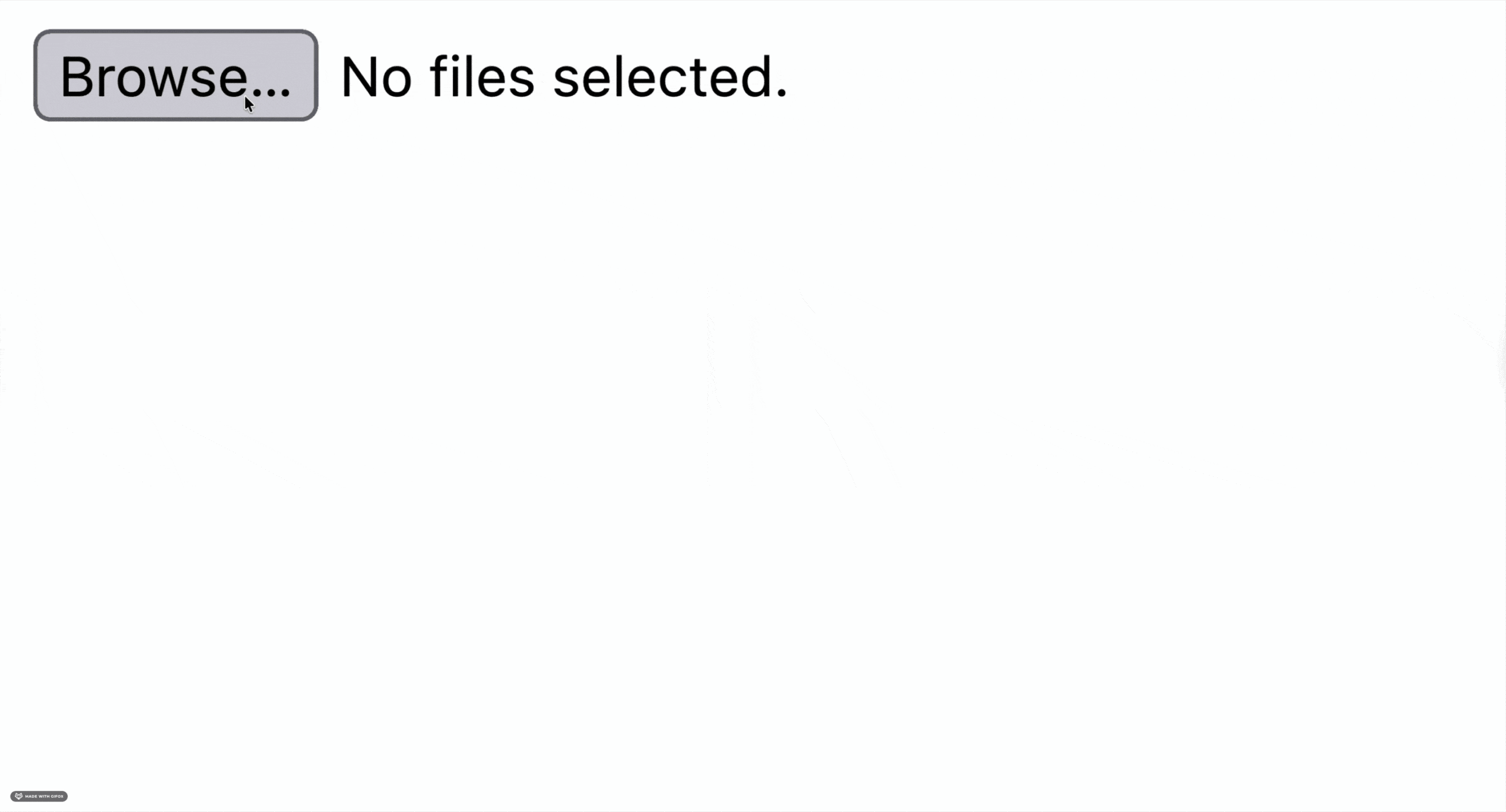
The HTML <input type=”file”> is the default way to let users upload files on the web. It has been around for a long time. It’s simple, works in all browsers, and doesn’t need any extra tools or libraries.
<input type="file" id="fileInput" multiple>This adds a button to your page. When users click it, their device’s file picker opens so they can choose files. It works, and for many simple use cases, that’s enough.
Filestack Picker
Filestack Picker is a ready-to-use file upload tool with many extra features. Instead of only opening the device’s file picker, it lets users upload files from their device, cloud storage (like Google Drive or Dropbox), camera, and more. All of these from one simple pop-up window.
💡Tip: You can review full configuration options in the Filestack Picker documentation.
<!DOCTYPE html>
<html lang="en">
  <head>
    <meta charset="UTF-8" />
    <title>Filestack Upload Example</title>

    <!-- Filestack SDK -->
    <script src="<https://static.filestackapi.com/filestack-js/4.x.x/filestack.min.js>"></script>
  </head>
  <body>
    <button id="uploadBtn">Upload File</button>

    <script>
      // Replace with your actual Filestack API key
      const client = filestack.init("YOUR_API_KEY");

      document
        .getElementById("uploadBtn")
        .addEventListener("click", function () {
          client
            .picker({
              onUploadDone: function (result) {
                console.log("Uploaded files:", result.filesUploaded);
                alert("Upload successful!");
              },
            })
            .open();
        });
    </script>
  </body>
</html>
With just a few lines of code, you get a powerful and professional upload system without building everything yourself.
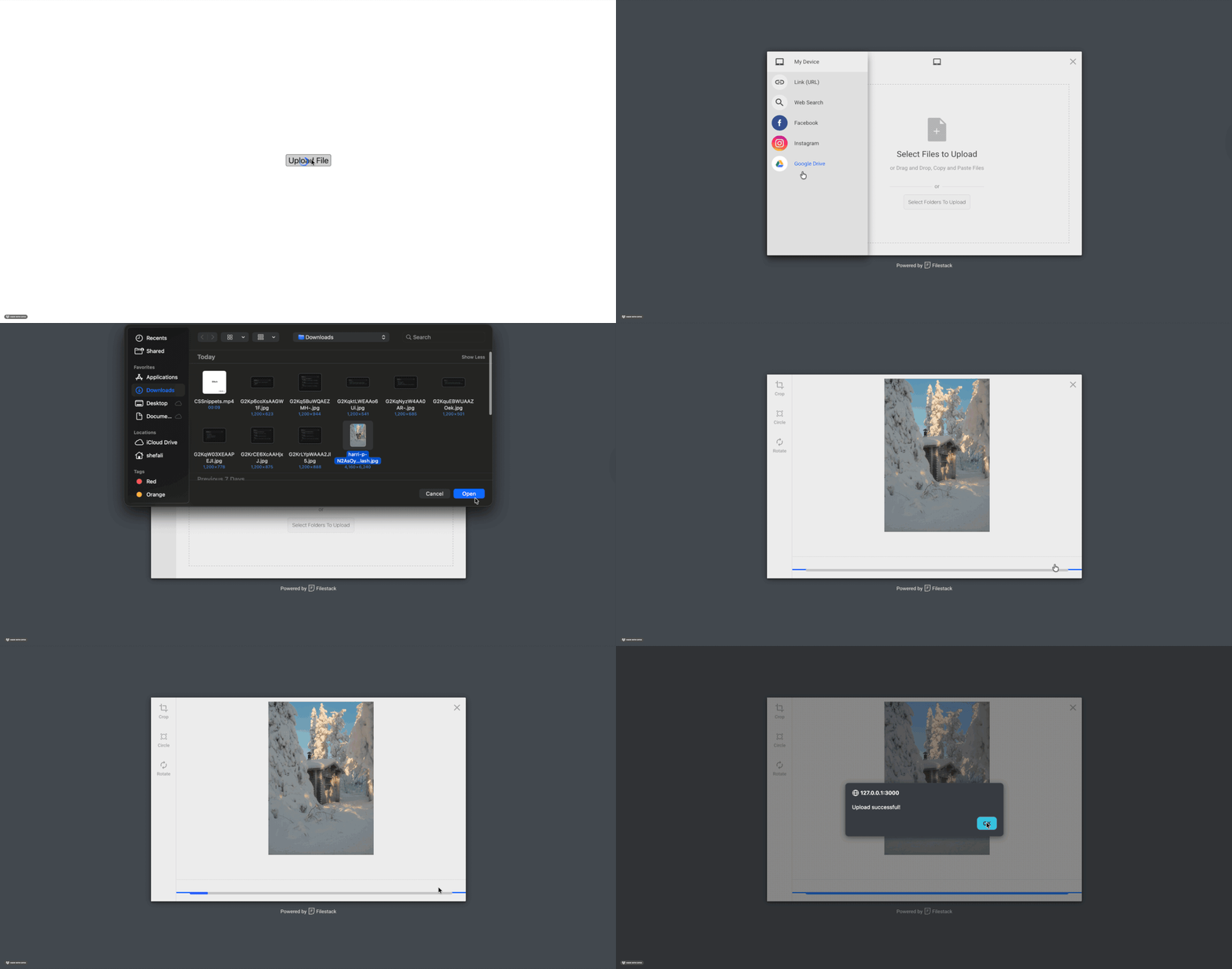
Now that you understand how each option works at a basic level, let’s compare what you actually get in real-world use.
The Feature Gap: What You Actually Get
Now let’s look at the real difference. Both options let users upload files, but the features you get are very different. This affects user experience, reliability, security, and how much work you need to do as a developer.
File Source Options
Native HTML Input
- Users can upload files only from their device.
- Camera access needs extra setup.
- No cloud storage support unless you build it yourself.
- Cannot import files directly from a URL.
Filestack Picker
- Upload from local device.
- Connects to Google Drive, Dropbox, OneDrive, Box, and more.
- Direct camera and webcam support.
- Import files using a URL.
- Import photos from Facebook and Instagram.
- Everything is available in one simple interface.
For modern apps, this is a big difference. Today, users store files in many places and expect to pull files from wherever they store them. Building integrations with even three cloud providers would take weeks of development time and ongoing OAuth maintenance, Filestack includes 20+ sources out of the box.
💡Tip: If cloud storage integration is important for your product, you can see the full list of supported cloud sources available in Filestack.
File sources are only part of the picture. Once a file is selected, the real challenge is uploading it reliably, especially under poor network conditions.
Upload Reliability and Performance
Native HTML Input
- Basic file upload using a POST request.
- No automatic retry if upload fails.
- Large files are not automatically split into smaller parts.
- You must build your own progress bar.
- Uploads often fail if the internet connection changes.
Filestack Picker
- Breaks large files into smaller chunks automatically.
- Retries uploads if something goes wrong.
- Adjusts upload speed based on network conditions.
- Built-in progress indicators.
- Can resume uploads if the connection drops.
For example, if someone uploads a 500MB video file over a mobile connection and the internet disconnects, native input may force them to start again. With Filestack, the upload continues from where it stopped.
💡Tip: If you handle large files, you can review how large file uploads and chunking work in Filestack.
Reliability ensures files reach your server. But once they do, security becomes the next important concern.
File Validation and Security
Native HTML Input
- You can limit file types, but it’s easy to bypass.
- File size checks need custom JavaScript.
- No built-in content checking.
- The server must handle validation and security.
- No automatic virus scanning.
Filestack Picker
- Validates files before and after upload.
- Enforces file type and size limits.
- Scans files for viruses automatically.
- Checks real file type (not just file extension).
- Allows custom validation rules.
For example, someone could rename an .exe file to .jpg and upload it using native input. Filestack checks the real file content and blocks unsafe files before they reach your server.
Beyond safety and validation, many modern apps also need built-in file processing capabilities.
Image Handling and Transformation
Native HTML Input
- No built-in image editing.
- No automatic resizing or compression.
- No preview tools.
- You must build image processing on your server.
- Large images use more storage and bandwidth.
Filestack Picker
- Automatically optimises images.
- Resize, crop, rotate, and apply filters.
- Built-in image editor.
- Compresses images without losing quality.
- Creates responsive image sizes.
- Smart face detection and cropping.
For example, if users upload product photos, Filestack can automatically create thumbnails and smaller versions while reducing a 5MB image to under 200KB, without the need to write extra code or manage image servers.
Features matter. But so does the time and effort required to build and maintain them.
Development Experience
Now, let’s talk about how much time and effort it takes to build and maintain file uploads. It’s not just about writing code once; it’s also about how much work you’ll have to do later.
Implementation Time
Native HTML Input
At first, it looks quick to set up. But adding real features takes time:
- Basic file input: about 30 minutes
- Progress bar: 2–3 hours
- Drag-and-drop support: 3–4 hours
- Image preview: 2–3 hours
- Mobile camera support: 4–6 hours
- Cloud storage (just one provider): 20–40 hours
- Retry logic for failed uploads: 4–8 hours
- File validation: 3–5 hours
If you want features similar to a complete upload system, it can take 40–70 hours or more.
Filestack Picker
- Full upload system setup: 1–2 hours
- Custom styling and branding: 2–4 hours
In total, you can get a professional-level upload system in 3–6 hours.
Maintenance Burden
Native HTML Input
When you build everything yourself, you also maintain everything yourself. That means:
- Tracking upload failures
- Fixing browser compatibility issues
- Updating cloud storage integrations
- Handling security updates
- Improving performance
- Managing server scaling as traffic grows
All of this takes ongoing time and effort.
Filestack Picker
Filestack handles infrastructure, cloud integrations, performance improvements, and updates. Your upload system improves automatically without extra work from your team.
Many teams find that after building their own upload solution, they spend a large part of an engineer’s time just maintaining it. Using a managed solution gives that time back so you can focus on building core features instead.
While development effort affects your team, user experience affects your customers directly.
User Experience Differences
A good user experience makes uploading simple, fast, and stress-free, especially on mobile and for users who rely on accessibility tools.
Mobile Experience
Native HTML Input
- Uses the device’s default file picker (looks different on every device).
- Can feel outdated or awkward on older phones.
- Camera support needs extra setup.
- No help for users who don’t understand file folders.
- Uploads often fail if the internet connection changes.
Filestack Picker
- Same clean and modern interface on all devices.
- One-tap camera support.
- Clear upload progress shown on screen.
- Automatically resumes if the internet disconnects.
- Works smoothly on iOS, Android, and desktop.
Accessibility
Native HTML Input
- Basic keyboard support.
- Screen reader support depends on the browser.
- Error messages must be built manually.
Filestack Picker
- Follows WCAG 2.1 AA accessibility standards.
- Full keyboard navigation.
- Optimised for screen readers with proper labels.
- Announces upload progress and status.
- Supports high contrast mode.
Ultimately, both engineering effort and user experience impact cost, directly or indirectly.
Cost Analysis
Next, let’s talk about money. At first, native HTML input looks free. But once you add real features, infrastructure, and maintenance, the total cost can become much higher than expected.
Native HTML Input Costs
- Developer time to build features: $15,000–$60,000 (depending on complexity).
- Servers and storage: $500–$5,000 per month.
- Ongoing maintenance: 10–30% of an engineer’s time.
- CDN for delivering files: $200–$2,000 per month.
- Video processing services: $300–$3,000 per month.
Estimated first-year cost: $30,000–$120,000 or more.
Even though the file input itself is free, building a complete and reliable system is not.
Filestack Costs
- Starter plan: $69/month (20,000 uploads, 75GB bandwidth).
- Grow plan: $199/month (50,000 uploads, 200GB bandwidth).
- Scale plan: $379/month (125,000 uploads, 400GB bandwidth).
- Includes infrastructure, file processing, CDN, image transformations, and support.
Estimated first-year cost: $588–$2,988 (or custom enterprise pricing).
There’s also something called opportunity cost. If you save 6–16 weeks of development time, your team can build new features instead. That time saved can bring much more value to your business than the subscription cost itself.
Despite the cost differences, there are still situations where a simple approach is the right choice.
When Native Input Makes Sense
Even though advanced tools offer many features, the basic HTML file input is still a good choice in some cases.
Here are situations where it makes sense:
- Very simple needs: If users only need to upload one type of file (like a CSV file) and you don’t need editing, cloud storage, or extra processing, the basic input is enough.
- Offline apps: If your app works fully offline and doesn’t need cloud uploads or processing, a simple file input works fine.
- No budget, but available developers: If you don’t want to pay for a third-party service and you have developers who can build and maintain everything, native input may work.
- Full control is required: If your project has strict technical or legal requirements and you need complete control over every step of the upload process, building it yourself might be better.
- Very low upload volume: If you get fewer than 50 uploads per month and don’t expect growth, a simple solution may be enough.
In these cases, native HTML input gives you a free and basic starting point that can meet your needs.
However, as product requirements grow, the balance often shifts.
When Filestack Is the Clear Winner
Filestack is the better choice when you need more than just a basic file upload. If your app is growing or has advanced needs, it can save you a lot of time and effort.
Here’s when it makes the most sense:
- Cloud storage support: Users need to upload files from Google Drive, Dropbox, or other cloud services.
- Large file uploads: You handle big files (100MB or more) and need uploads to resume if the internet disconnects.
- Mobile-first users: Most of your users are on mobile devices, and you want a smooth experience.
- Image or video processing: You need automatic resizing, thumbnails, compression, or transformations.
- Fast launch timeline: You want a production-ready upload system in days, not months.
- Consistent user experience: You want the same clean interface across desktop, iOS, and Android.
- Global audience: Your users are in different countries with different network speeds.
- Strong security needs: You need virus scanning, secure storage, or compliance features.
- Small team or limited resources: You want advanced features without building everything yourself.
- Future growth: You expect to add more upload-related features later.
In these situations, using Filestack helps you move faster, reduce maintenance work, and provide a better experience for users.
With all these factors in mind, the final choice depends on your product’s current needs and future direction.
Migration Considerations
If you ever decide to switch from one solution to another, it’s important to understand what the process looks like. Some migrations are simple, while others require much more work.
Moving from Native to Filestack
If your app has outgrown basic file input, switching is usually simple:
- Easy replacement: You can replace your existing file input with Filestack Picker without major backend changes.
- Gradual rollout: You can test it with a small group of users first before releasing it to everyone.
- Keep backup option: You can keep the old file input as a fallback during the transition.
- No data loss: Previously uploaded files remain safe and accessible.
Most teams complete this switch in 1–2 sprints without downtime.
Moving from Filestack to Native
Switching back to native input is possible, but it requires more effort. You would need to:
- Rebuild cloud storage integrations.
- Create your own file processing system.
- Manage servers and scaling.
- Rebuild the entire upload user experience.
- Handle updates and improvements yourself.
Before switching, teams should carefully compare the money saved on subscriptions with the time and long-term maintenance cost of rebuilding everything.
Making Your Decision
At the end of the day, your choice depends on your app’s needs, budget, and timeline. Think about how simple or advanced your upload system needs to be.
Choose native HTML file input if you have:
- Your needs are very simple and unlikely to change.
- You have developers with enough time to build and maintain it.
- You don’t need cloud storage or file processing.
- You expect very few uploads.
- Your app works fully offline.
Choose Filestack Picker if you need:
- Users need to upload from cloud storage.
- You handle large files and need reliable uploads.
- You need image or video processing.
- You want to launch quickly.
- You need strong security or compliance features.
- Most users are on mobile devices.
- You want to reduce long-term maintenance work.
For most modern apps with professional upload needs, Filestack saves time and effort. The subscription cost is usually much lower than the cost of building and maintaining the same features yourself.
Conclusion
Choosing between Filestack Picker and native HTML file input is not just about features. It’s about how you want to spend your time and effort.
Native input means building and managing everything yourself. You get full control, but it takes more development time and ongoing maintenance.
Filestack, on the other hand, gives you a ready-made, professional upload system. You can set it up quickly and focus your energy on building your main product instead of managing file uploads.
For modern apps, the benefits are clear: you save weeks of development time, reduce maintenance work, improve user experience, and get updates automatically. In many cases, the subscription cost is much lower than the time and money spent building the same system yourself.
So the real question is not whether Filestack has more features; it does. The question is whether saving time, reducing complexity, and improving reliability is worth the cost for your app. For most growing products, the answer is yes.
Want to test chunked uploads and cloud integrations in minutes? Start a 21-day free trial.

Shefali Jangid is a web developer, technical writer, and content creator with a love for building intuitive tools and resources for developers.
She writes about web development, shares practical coding tips on her blog shefali.dev, and creates projects that make developers’ lives easier.
Read More →