


How Filestack Domain Whitelists Work
Your Filestack API key lives in client-side JavaScript. That’s by design. The picker runs in the browser, which means anyone who inspects your source can find it. Domain whitelists are the first thing you should configure to limit where that key actually works.
Here’s how both whitelist types work, what the glob pattern syntax actually means in practice, and where whitelists stop being enough. Full reference in the Filestack domain whitelist docs.
Upload Whitelists
The upload whitelist restricts which domains can embed the Filestack File Picker. When a request comes in, Filestack checks the Origin header. If the domain isn’t on your list, the request is blocked.
You configure this in your dashboard under Security > Configuration > Whitelisted Domains, in the Upload section.
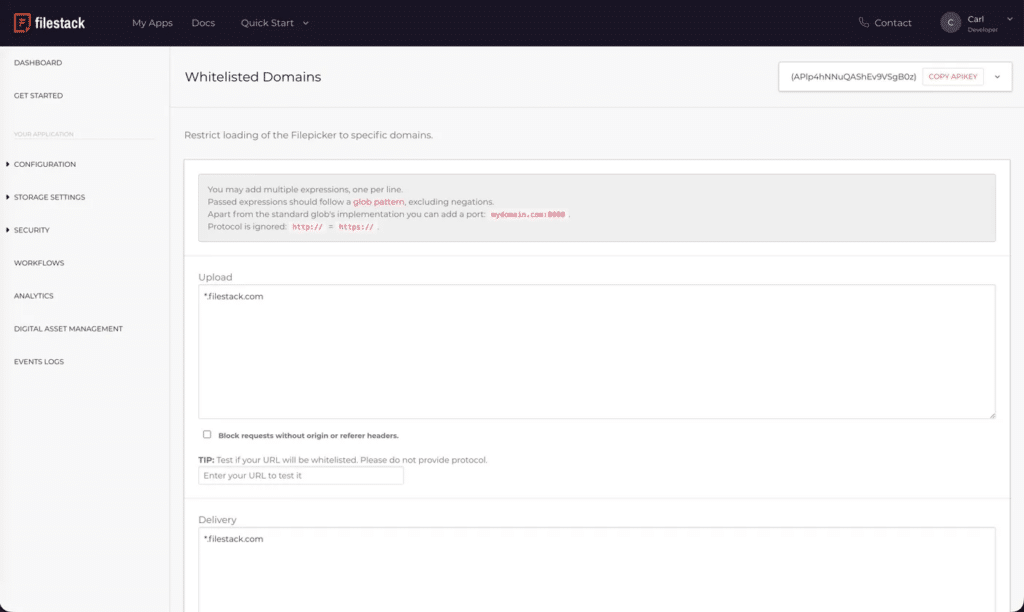

By default, *.filestack.com is already there so the picker works in the Filestack UI. Add your own domains below it.
The honest limitation: Origin headers are browser-enforced. Outside the browser (curl, Postman, a server-side script) they’re trivially spoofable. Upload whitelists stop another website from freeloading on your API key in a browser context, but they’re not a substitute for Security Policies if you need real request-level authentication.
Delivery Whitelists
The delivery whitelist controls which domains can serve files through your Filestack CDN URLs. Same concept. It just restricts where your files can be embedded or hotlinked.
Configure it in the same dashboard panel, in the Delivery section.
This is also worth knowing if you’re seeing a Forbidden error when accessing a CDN URL from a different domain. A missing or unrecognized Origin header against a configured delivery whitelist is likely the cause. Check your whitelist patterns first before digging elsewhere.
The honest limitation here too: Delivery whitelists only work when a domain is making the request through a browser with proper Origin or Referer headers. A direct download (curl https://cdn.filestackcontent.com/your-file-handle or pasting the URL directly into a browser) bypasses the whitelist entirely. The file is still accessible. For assets that genuinely need to be protected from direct access, you need Security Policies.
The Checkbox: Blocking Requests Without Origin or Referer Headers
Once you add a domain to either whitelist, a checkbox appears below the domain list: Block requests without origin or referer headers.

This is separate for upload and delivery. Enabling it means requests that arrive with no Origin or Referer header at all, not an unrecognized one but a missing one, get blocked. Useful if you want stricter browser-only enforcement. Be aware this can catch legitimate server-side requests depending on your setup.
Glob Pattern Reference
The pattern syntax follows a limited glob format. Here’s what you actually need to know, with examples:
* matches any characters except separators
*domain.*
Matches mydomain.com, yourdomain.net, theirdomain.io, but not www.domain.com. The * doesn’t cross the dot boundary.
If you want to match subdomains too:
*.domain.com
This matches www.domain.com, app.domain.com, api.domain.com. Anything with exactly one subdomain level before domain.com.
{ } for multiple TLDs or options
mydomain.{com,org,io}
Matches mydomain.com, mydomain.org, mydomain.io. Useful if your product runs on multiple TLDs.
Port-specific configs
mydomain.com:8080
This only matches requests from mydomain.com:8080. A request from mydomain.com (no port) won’t match. If you’re running local dev on a non-standard port, add the port explicitly.
[ ] for character ranges
[a-n]*domain.com
Matches anything starting with a character from a to n followed by domain.com. You’ll rarely need this, but it’s there.
Full pattern reference
| Pattern | Fixture | Match |
| mydomain.com:8080 | mydomain.com:8080 | ✔ true |
| mydomain.com:8080 | mydomain.com | ✘ false |
| *domain.* | mydomain.com | ✔ true |
| *domain.* | www.domain.com | ✘ false |
| *.domain.* | www.domain.com | ✔ true |
| subdomain.*.com | subdomain.domain.com | ✔ true |
| subdomain.*.com | subdomain.d1.d2.com | ✘ false |
| mydomain.{com,org} | mydomain.com | ✔ true |
| mydomain.{com,org} | mydomain.org | ✔ true |
| mydomain.{com,org} | mydomain.io | ✘ false |
| [a-n]*domain.com | my1domain.com | ✔ true |
| [a-n]*domain.com | one1domain.com | ✘ false |
A few things to keep in mind
- Protocol is ignored. http:// and https:// are treated the same, so you don’t need to add both.
- Parentheses ( ) are not accepted. Use curly brackets { } instead.
- Maximum 20 patterns per whitelist type. If you need more, reach out to support.
What Whitelists Don’t Cover
To recap both limitations in one place:
- Direct downloads bypass delivery whitelists. Anyone with a CDN URL can download the file directly via curl or a browser address bar.
- Spoofed Origin headers bypass upload whitelists. This only matters for non-browser clients, but it means whitelists alone won’t stop a determined bad actor.
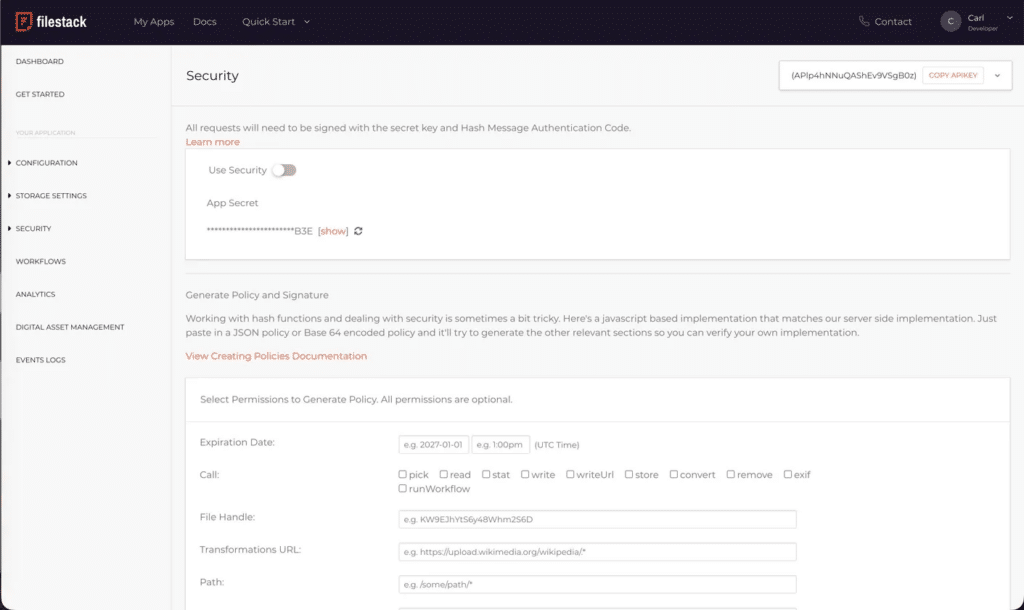
Both whitelist types are useful first-layer controls. Neither is a complete security solution. For full request-level auth (expiring tokens, per-user permissions, signed URLs) configure Security Policies. That’s where HMAC signatures come in, and it’s the layer that actually protects against abuse.
Next Steps
If you haven’t set up whitelists yet, the domain whitelist dashboard is the right place to start. If you’re already using whitelists and want stronger protection, read through the Security Policies docs, which covers how to generate policy and signature pairs, what each permission scope does, and how to integrate it with your backend.
This is part of a broader security setup worth getting right before you go to production. Domain whitelists are the quick first step. Security Policies are what you layer on top.


A Product Marketing Manager at Filestack with four years of dedicated experience. As a true technology enthusiast, they pair marketing expertise with a deep technical background. This allows them to effectively translate complex product capabilities into clear value for a developer-focused audience.