
You have file handles. You need transformed images. The Processing API sits between upload and delivery, letting you resize, crop, convert, and enhance files on the fly in your file uploader.
This guide skips the theory. Instead, here are copy-paste URL patterns for the most common scenarios you’ll run into.
Key Takeaways
- Task order matters. Resize before compressing. Watermark after resizing. Rotate before cropping.
- Use
auto_imagefor automatic WebP delivery. Smaller files, same quality, no extra work. - Add
cache=expiry:maxto static images. Saves transformation quota and speeds up delivery. - Always include
rotate=deg:exiffor user uploads. Fixes sideways phone photos automatically. - Run
compresslast. It works best on the final, resized image.
How URL Chaining Works
Every transformation is a task. Tasks chain together with forward slashes. They run left to right. For a deeper look at how the Processing Engine works under the hood, check the overview docs.
Basic structure:
https://cdn.filestackcontent.com/TASK1/TASK2/TASK3/HANDLE
With an external URL instead of a handle:
https://cdn.filestackcontent.com/APIKEY/TASK1/TASK2/EXTERNAL_URL
Order matters. A resize before a watermark gives different results than a watermark before a resize.
Now, the recipes.
Profile Pictures
Users upload whatever they want. You need consistent, optimized avatars. Let’s say a user uploads this picture and let’s automatically transform them using Filetack’s Processing Engine

Standard Avatar (Square, Face-Centered)
https://cdn.filestackcontent.com/crop_faces=width:200,height:200,mode:thumb/compress/HANDLE
What this does:
crop_facesdetects faces and crops around them with a buffermode:thumbensures the face fits naturally within the frame- Output is exactly 200×200 pixels
compressreduces file size without visible quality loss

Circular Avatar with Fallback
https://cdn.filestackcontent.com/resize=width:200,height:200,fit:crop,align:faces/circle/compress/HANDLE
What this does:
resizewithfit:cropandalign:facescenters on detected facescirclemasks the image into a circular shape- Works even when no face is detected (falls back to center)

High-DPI Avatar for Retina Displays
https://cdn.filestackcontent.com/crop_faces=width:400,height:400,mode:thumb/quality=value:85/auto_image/HANDLE
What this does:
- Outputs 400×400 (display at 200×200 CSS pixels for 2x density)
quality=value:85balances size and clarityauto_imageserves WebP to supported browsers, JPEG to others

If you need to give users control over their own cropping, the Transformation UI provides a drag-and-drop interface that outputs these same URL chains.
E-commerce Product Images
Product photos need to look consistent across your catalog, regardless of what sellers upload.
Product Thumbnail (White Background)
https://cdn.filestackcontent.com/resize=width:300,height:300,fit:max/rotate=deg:exif/compress/HANDLE
What this does:
resizewithfit:maxkeeps aspect ratio, never upscalesrotate=deg:exiffixes phone photos that uploaded sideways- Maximum dimension is 300px on either side

Product Detail Image (Fixed Aspect Ratio)
https://cdn.filestackcontent.com/resize=width:800,height:800,fit:clip/quality=value:80/auto_image/HANDLE
What this does:
fit:clipconstrains to 800×800 while preserving aspect ratio- Good balance of detail and load time for product pages

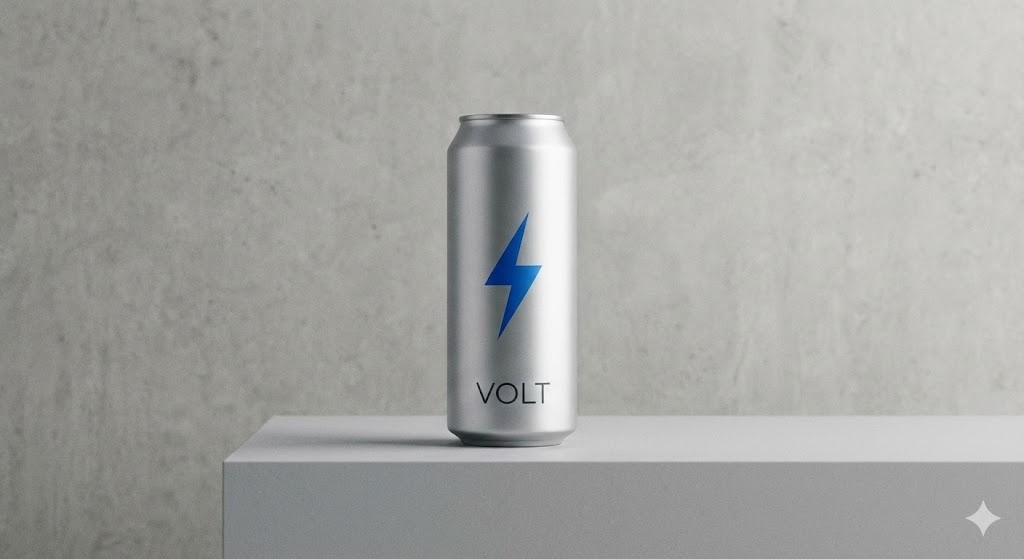
Product Zoom (High Quality, Cached)
https://cdn.filestackcontent.com/resize=width:1600,fit:max/quality=value:90/cache=expiry:31536000/HANDLE
What this does:
- Large image for zoom functionality
cache=expiry:31536000caches for one year (saves transformation quota)- Higher quality setting since users are examining details
User-Generated Content
Forums, reviews, social feeds. Users upload unpredictable content. You need it safe and consistent.
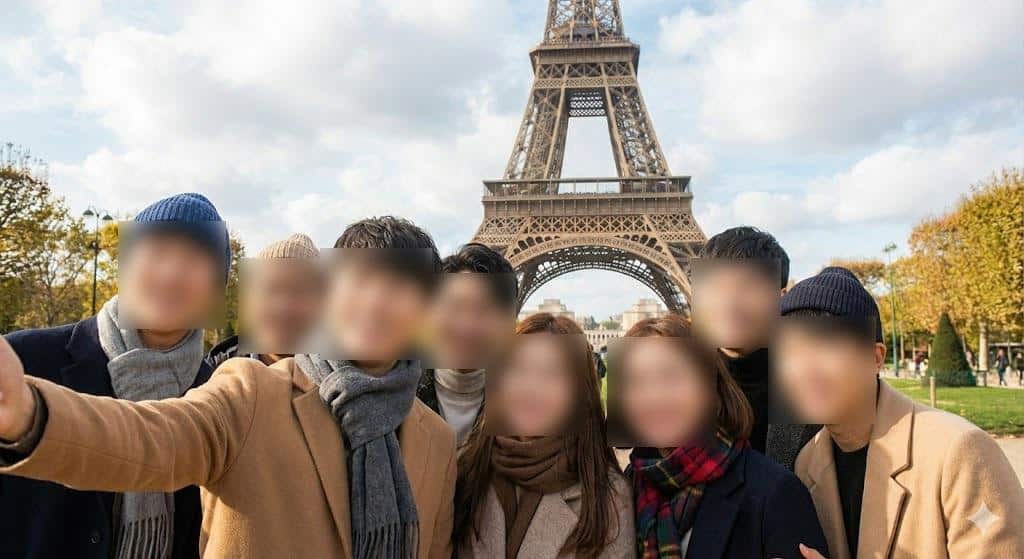
Moderate and Resize UGC Images
https://cdn.filestackcontent.com/resize=width:1200,fit:max/blur_faces=faces:all,amount:8/compress/HANDLE
What this does:
- Caps image at 1200px wide
blur_facesanonymizes people (useful for street photos, crowds)- Compression for fast loading in feeds
Strip Metadata and Optimize
https://cdn.filestackcontent.com/rotate=deg:exif/no_metadata/resize=width:1000,fit:max/compress/HANDLE
What this does:
rotate=deg:exifapplies rotation before stripping metadatano_metadataremoves GPS coordinates, camera info, etc.- Privacy-conscious processing for user uploads
Watermark UGC Before Download
https://cdn.filestackcontent.com/resize=width:1200,fit:max/watermark=file:YOUR_WATERMARK_HANDLE,position:[bottom,right],size:15/compress/HANDLE
What this does:
- Resize first (watermark scales to final dimensions)
position:[bottom,right]places watermark in cornersize:15makes watermark 15% of its original size
add_water_mark_image
Document Processing
PDFs, Word docs, presentations. Common needs: thumbnails, previews, conversions.
PDF Page to Image Preview
https://cdn.filestackcontent.com/output=format:jpg,page:1,density:150/resize=width:600,fit:max/compress/HANDLE
What this does:
outputconverts first page of PDF to JPEGdensity:150sets resolution (higher = sharper, larger file)- Resize constrains the output
Document to Thumbnail Grid
https://cdn.filestackcontent.com/output=format:png,page:1,density:100/resize=width:200,height:280,fit:clip/HANDLE
What this does:
- Converts first page to PNG (better for text documents)
- Fixed thumbnail size for consistent grid layouts
Get PDF Page Count (JSON Response)
https://cdn.filestackcontent.com/output=format:pdf,docinfo:true/HANDLE
Returns JSON with page count and dimensions. Useful for showing “12 pages” before the user opens the document.
Performance Optimization
Faster pages, lower bandwidth costs. Image weight is one of the biggest factors in page speed, and the image transformation API can cut load times significantly with the right chain.
Aggressive Compression Chain
https://cdn.filestackcontent.com/resize=width:800,fit:max/quality=value:75/auto_image/compress/HANDLE
What this does:
- Resize first (fewer pixels to compress)
quality=value:75reduces quality slightlyauto_imagepicks the best formatcompressapplies mozjpeg optimization
Order matters here. Run compress last.
Progressive JPEG for Large Images
https://cdn.filestackcontent.com/resize=width:1600,fit:max/pjpg=quality:80/HANDLE
What this does:
pjpgoutputs progressive JPEG- Image loads in stages (blurry to sharp) instead of top-to-bottom
- Better perceived performance on slow connections
Cache Transformed Images Long-Term
https://cdn.filestackcontent.com/resize=width:400/compress/cache=expiry:max/HANDLE
What this does:
cache=expiry:maxsets CDN cache to one year- Reduces transformation quota usage
- Use for images that won’t change (product photos, avatars)
Storing Transformed Images
By default, transformations are cached for 30 days. If you want to create a new permanent handle from a transformed image:
https://cdn.filestackcontent.com/APIKEY/resize=width:400/compress/store/HANDLE
Returns JSON:
{
  "url": "https://cdn.filestackcontent.com/NEW_HANDLE",
  "filename": "image.png",
  "size": 45678,
  "type": "image/png"
}
Now NEW_HANDLE is a permanent file you can reference without reprocessing.
Handling Errors with Fallbacks
When source images are broken or transformations fail, show a placeholder instead of an error.
https://cdn.filestackcontent.com/resize=width:400/fallback=file:YOUR_PLACEHOLDER_HANDLE,cache:300/HANDLE
What this does:
- If the transformation fails, returns your placeholder image
cache:300caches the fallback for 5 minutes (so you can fix the original)
Quick Reference: Task Order
For most image processing, this order works well:
- rotate (fix orientation first)
- crop or smart_crop (remove unwanted areas)
- resize (set final dimensions)
- filters (blur, sharpen, etc.)
- watermark (apply to final size)
- quality (reduce quality after all edits)
- auto_image or compress (format optimization last)
- cache or store (control delivery)
Common Mistakes to Avoid
Compressing before resizing. Resize first. Fewer pixels means better compression.
Using cache=false in production. Every request with cache=false counts against your transformation quota. Use it only for testing.
Forgetting EXIF rotation. Phone photos often have rotation metadata. Add rotate=deg:exif early in your chain.
Setting quality too low. Below 70, JPEG artifacts become visible. Start at 80 and test.
Watermarking before resize. Your watermark will get scaled. Apply it after the final resize.
What’s Next
These recipes cover the most common patterns. The Processing API has more specialized tasks for facial detection, PDF manipulation, and video transcoding.
For the full parameter reference, see the Processing API documentation.
Questions about specific transformation chains? Reach out to support@filestack.com.

A Product Marketing Manager at Filestack with four years of dedicated experience. As a true technology enthusiast, they pair marketing expertise with a deep technical background. This allows them to effectively translate complex product capabilities into clear value for a developer-focused audience.
Read More →