If your app handles user uploads, you’ve likely faced the challenge of organizing images without useful metadata. Users upload photos with filenames like “IMG_4521.jpg” or “screenshot.png,” leaving you with no context about what’s actually in the image.
Image captioning solves this by generating natural language descriptions of image content. You can use these captions for search, accessibility (alt text), content moderation workflows, or building smarter galleries.
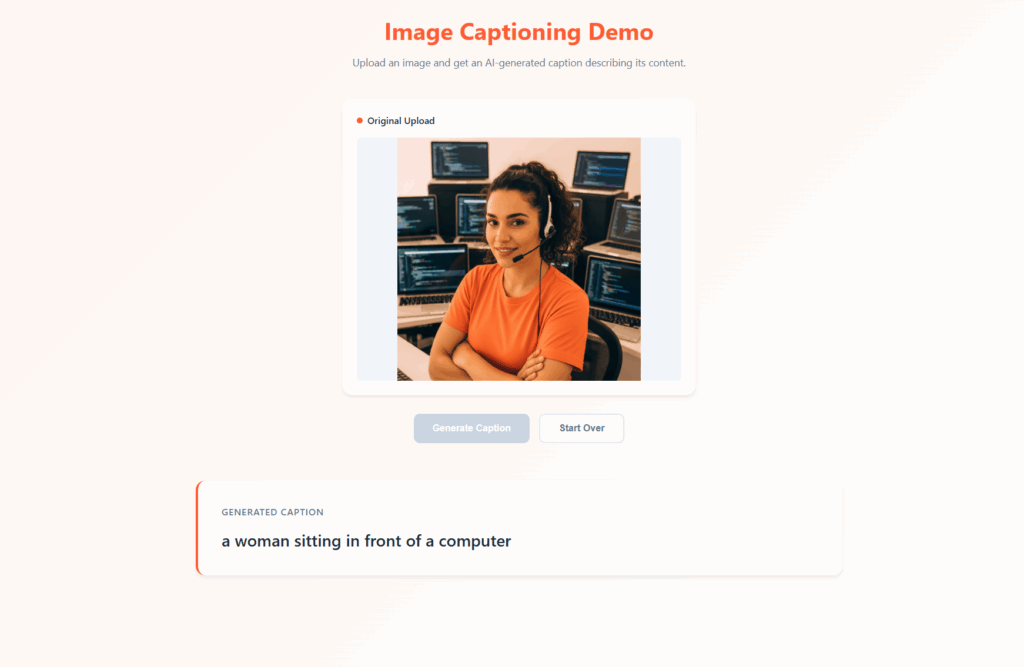
This guide walks through how to implement image captioning using Filestack’s file picker. You can try it yourself in the interactive demo below, then copy the code into your own project.
Key Takeaways
-
Automated Context Adds descriptive natural language metadata to user uploads to replace vague filenames
-
Accessibility Compliance Generates instant alt text for screen readers to meet WCAG guidelines without manual input
-
Smarter Search Enables users to find images in your library based on visual content rather than tags
-
Secure Implementation Requires generating security policies and signatures server-side to protect your API secret
-
AI Architecture Uses attention networks to analyze visual elements and returns a JSON response in 1 to 3 seconds
How It Works
The captioning API uses attention networks trained on large image datasets. When you pass an image through the technical deep dive on image captioning.
The basic URL structure looks like this:
https://cdn.filestackcontent.com/security=p:POLICY,s:SIGNATURE/caption/FILE_HANDLEThe API returns a JSON response with a single { "caption": "a golden retriever running through a grassy field" }
Implementation
Step 1: Upload the Image
First, upload the image to get a file handle using the JavaScript SDK:
const client = filestack.init('YOUR_API_KEY');
const result = await client.upload(file);
const handle = result.handle;

// handle: "3PnPnQyYTqaSdQLo8Cxq"
Step 2: Generate Security Credentials
The caption transformation requires security policies. Generate these server side to avoid exposing your API secret. See the security policies documentation for full details.
// Node.js example
const crypto = require('crypto');

const policy = {
  expiry: Math.floor(Date.now() / 1000) + 3600, // 1 hour
  call: ['pick', 'read', 'stat', 'write', 'writeUrl', 'store', 'convert', 'remove', 'exif', 'runWorkflow']
};

const encodedPolicy = Buffer.from(JSON.stringify(policy))
  .toString('base64');

const signature = crypto
  .createHmac('sha256', YOUR_API_SECRET)
  .update(encodedPolicy)
  .digest('hex');
Step 3: Call the Caption API
Build the transformation URL and fetch the caption:
const captionUrl = `https://cdn.filestackcontent.com/security=p:${POLICY},s:${SIGNATURE}/caption/${handle}`;

const response = await fetch(captionUrl);
const data = await response.json();

console.log(data.caption);
// "a close up of a cat lying on a couch"
Common Use Cases
Generating Alt Text for Accessibility
Automatically create alt attributes for user uploaded images. This helps screen readers describe content to visually impaired users, which is essential for meeting WCAG accessibility guidelines:
async function getAltText(handle) {
  const url = buildCaptionUrl(handle);
  const { caption } = await fetch(url).then(r.json());
  return caption;
}

// Usage
const altText = await getAltText(imageHandle);
img.setAttribute('alt', altText);

// Building Searchable Image Libraries// On upload, store caption with image metadata
const imageRecord = {
handle: result.handle,
filename: file.name,
caption: await getCaption(result.handle),
uploadedAt: new Date()
};
await db.images.insert(imageRecord);
// Later: search by caption content
const results = await db.images.find({
caption: { $regex: 'dog', $options: 'i' }
});Routing with Workflows
Use captions in Filestack Workflows to route images based on content. For example, you could automatically tag photos containing specific subjects:
// Workflow logic condition
caption kex "person"  // Routes if caption contains "person"
caption kex "product" // Routes product shots separately
API Reference
| Parameter | Type | Description |
|---|---|---|
caption |
transformation | The task name. No additional parameters required. |
security |
required | Policy and signature. Format: p:POLICY,s:SIGNATURE |
Response Format
| Field | Type | Description |
|---|---|---|
caption |
string | Natural language description of the image content |
Note: Caption generation typically takes 1 to 3 seconds depending on image size. Consider showing a loading state in your UI.
Next Steps
Once you have captioning working, you might want to explore related transformations. The Image Tagging API returns keyword tags instead of sentences, which works better for categorical filtering. The OCR transformation extracts actual text from images if your use case involves documents.
Check the full caption documentation for additional examples and workflow integration details.
Working Demo Code
Copy this HTML file to test the caption API yourself. Replace the placeholder credentials with your own from the Filestack dashboard.
<!DOCTYPE html>
<html lang="en">
<head>
  <meta charset="UTF-8">
  <meta name="viewport" content="width=device-width, initial-scale=1.0">
  <title>Image Captioning Demo</title>
  <style>
    * {
      box-sizing: border-box;
      margin: 0;
      padding: 0;
    }

    body {
      font-family: -apple-system, BlinkMacSystemFont, 'Segoe UI', Roboto, sans-serif;
      background: linear-gradient(135deg, #fff5f0 0%, #ffffff 100%);
      color: #334155;
      line-height: 1.6;
      padding: 2rem;
      min-height: 100vh;
    }

    .container {
      max-width: 1100px;
      margin: 0 auto;
    }

    h1 {
      font-size: 2.5rem;
      font-weight: 700;
      text-align: center;
      margin-bottom: 0.5rem;
      color: #FF5C35;
    }

    .subtitle {
      text-align: center;
      color: #64748b;
      margin-bottom: 3rem;
      font-size: 1.1rem;
    }

    .upload-area {
      border: 2px dashed #cbd5e1;
      border-radius: 12px;
      padding: 3rem;
      text-align: center;
      background: white;
      transition: border-color 0.2s, background 0.2s;
      cursor: pointer;
    }

    .upload-area:hover,
    .upload-area.dragover {
      border-color: #FF5C35;
      background: #fff5f0;
    }

    .upload-area input {
      display: none;
    }

    .upload-icon {
      width: 48px;
      height: 48px;
      margin: 0 auto 1rem;
      color: #94a3b8;
    }

    .upload-btn {
      display: inline-block;
      padding: 0.75rem 2rem;
      background: #FF5C35;
      color: white;
      border: none;
      border-radius: 8px;
      font-size: 1rem;
      font-weight: 600;
      cursor: pointer;
      margin-top: 1rem;
      transition: background 0.2s, transform 0.1s;
    }

    .upload-btn:hover {
      background: #e54d2b;
      transform: translateY(-1px);
    }

    .hint {
      font-size: 0.813rem;
      color: #94a3b8;
      margin-top: 1rem;
    }

    .comparison {
      display: none;
      gap: 2rem;
      flex-direction: column;
      align-items: center;
    }

    .comparison.visible {
      display: flex;
    }

    .comparison > .image-card {
      width: 100%;
      max-width: 600px;
    }

    .image-card {
      background: white;
      border-radius: 16px;
      padding: 1.5rem;
      box-shadow: 0 4px 6px rgba(0,0,0,0.07);
    }

    .image-card h3 {
      font-size: 1rem;
      font-weight: 600;
      margin-bottom: 1rem;
      display: flex;
      align-items: center;
      gap: 0.5rem;
      color: #1e293b;
    }

    .image-card h3 .dot {
      width: 10px;
      height: 10px;
      border-radius: 50%;
    }

    .image-card h3 .dot.orange { background: #FF5C35; }
    .image-card h3 .dot.green { background: #22c55e; }

    .image-wrapper {
      aspect-ratio: 4/3;
      background: #f1f5f9;
      border-radius: 8px;
      overflow: hidden;
      display: flex;
      align-items: center;
      justify-content: center;
    }

    .image-wrapper img {
      max-width: 100%;
      max-height: 100%;
      object-fit: contain;
    }

    .placeholder {
      text-align: center;
      color: #94a3b8;
      padding: 2rem;
    }

    .placeholder svg {
      width: 32px;
      height: 32px;
      margin-bottom: 0.5rem;
    }

    .spinner {
      width: 40px;
      height: 40px;
      border: 4px solid #fee2d5;
      border-top-color: #FF5C35;
      border-radius: 50%;
      animation: spin 0.8s linear infinite;
      margin: 0 auto 0.5rem;
    }

    @keyframes spin {
      to { transform: rotate(360deg); }
    }

    .actions {
      display: flex;
      justify-content: center;
      gap: 1rem;
      margin-bottom: 2rem;
    }

    .btn {
      padding: 0.875rem 2rem;
      border-radius: 10px;
      font-size: 1rem;
      font-weight: 600;
      cursor: pointer;
      border: none;
      transition: all 0.2s;
    }

    .btn-primary {
      background: #FF5C35;
      color: white;
    }

    .btn-primary:hover {
      background: #e54d2b;
      transform: translateY(-1px);
      box-shadow: 0 4px 12px rgba(255, 92, 53, 0.3);
    }

    .btn-primary:disabled {
      background: #cbd5e1;
      cursor: not-allowed;
      transform: none;
      box-shadow: none;
    }

    .btn-secondary {
      background: white;
      color: #64748b;
      border: 2px solid #e2e8f0;
    }

    .btn-secondary:hover {
      background: #f8fafc;
      border-color: #cbd5e1;
      transform: translateY(-1px);
    }

    .results-section {
      display: none;
      gap: 2rem;
      width: 100%;
    }

    .results-section.visible {
      display: flex;
      flex-direction: column;
    }

    .caption-display {
      background: white;
      border-radius: 16px;
      padding: 2.5rem;
      box-shadow: 0 4px 6px rgba(0,0,0,0.07);
      border-left: 4px solid #FF5C35;
    }

    .caption-display h3 {
      font-size: 1rem;
      font-weight: 600;
      color: #64748b;
      margin-bottom: 1rem;
      text-transform: uppercase;
      letter-spacing: 0.05em;
    }

    .caption-display .caption-text {
      font-size: 1.75rem;
      font-weight: 600;
      color: #1e293b;
      line-height: 1.4;
    }

    .code-block {
      background: #1e293b;
      border-radius: 16px;
      padding: 1.75rem;
      display: none;
    }

    .code-block.visible {
      display: block;
    }

    .code-block p {
      color: #94a3b8;
      font-size: 0.875rem;
      font-weight: 600;
      margin-bottom: 0.75rem;
      text-transform: uppercase;
      letter-spacing: 0.05em;
    }

    .code-block code {
      color: #4ade80;
      font-size: 0.95rem;
      word-break: break-all;
      display: block;
      line-height: 1.6;
      font-family: 'Monaco', 'Courier New', monospace;
    }

    .error {
      background: #fef3c7;
      border: 2px solid #fcd34d;
      color: #92400e;
      padding: 1.25rem;
      border-radius: 12px;
      margin-top: 1.5rem;
      font-size: 1rem;
      display: none;
      font-weight: 500;
    }

    .error.visible {
      display: block;
    }

    .hidden {
      display: none;
    }
  </style>
</head>
<body>
  <div class="container">
    <h1>Image Captioning Demo</h1>
    <p class="subtitle">Upload an image and get an AI-generated caption describing its content.</p>

    <div class="upload-area" id="uploadArea">
      <svg class="upload-icon" fill="none" stroke="currentColor" viewBox="0 0 24 24">
        <path stroke-linecap="round" stroke-linejoin="round" stroke-width="1.5" d="M4 16v1a3 3 0 003 3h10a3 3 0 003-3v-1m-4-8l-4-4m0 0L8 8m4-4v12"/>
      </svg>
      <p>Drag and drop an image here</p>
      <label class="upload-btn">
        Choose Image
        <input type="file" id="fileInput" accept="image/*">
      </label>
      <p class="hint">Try any photo or image</p>
    </div>

    <div class="comparison" id="comparison">
      <div class="image-card">
        <h3><span class="dot orange"></span> Original Upload</h3>
        <div class="image-wrapper">
          <img id="originalImage" src="" alt="Original">
        </div>
      </div>

      <div class="actions" id="actions">
        <button class="btn btn-primary" id="processBtn">Generate Caption</button>
        <button class="btn btn-secondary" id="resetBtn">Start Over</button>
      </div>

      <div class="placeholder" id="loadingIndicator" style="display:none;">
        <div class="spinner"></div>
        <p>Generating caption...</p>
      </div>

      <div class="results-section" id="resultsSection">
        <div class="caption-display">
          <h3>Generated Caption</h3>
          <div class="caption-text" id="captionResult"></div>
        </div>

        <div class="code-block" id="codeBlock">
          <p>API URL</p>
          <code id="apiUrl"></code>
          <p style="margin-top: 1.5rem;">Response</p>
          <code id="apiResponse"></code>
        </div>
      </div>
    </div>

    <div class="error" id="errorMessage"></div>
  </div>

  <script src="//static.filestackapi.com/filestack-js/4.x.x/filestack.min.js"></script>
  <script>
    // Configuration: replace with your own credentials from https://dev.filestack.com/
    const API_KEY = 'YOUR_API_KEY';
    const POLICY = 'YOUR_POLICY';
    const SIGNATURE = 'YOUR_SIGNATURE';

    // Initialize client with security
    const client = filestack.init(API_KEY, {
      security: {
        policy: POLICY,
        signature: SIGNATURE
      }
    });

    // DOM elements
    const uploadArea = document.getElementById('uploadArea');
    const fileInput = document.getElementById('fileInput');
    const comparison = document.getElementById('comparison');
    const originalImage = document.getElementById('originalImage');
    const captionResult = document.getElementById('captionResult');
    const loadingIndicator = document.getElementById('loadingIndicator');
    const processBtn = document.getElementById('processBtn');
    const resetBtn = document.getElementById('resetBtn');
    const resultsSection = document.getElementById('resultsSection');
    const apiUrl = document.getElementById('apiUrl');
    const apiResponse = document.getElementById('apiResponse');
    const errorMessage = document.getElementById('errorMessage');

    let currentHandle = null;

    // Drag and drop
    uploadArea.addEventListener('dragover', (e) => {
      e.preventDefault();
      uploadArea.classList.add('dragover');
    });

    uploadArea.addEventListener('dragleave', () => {
      uploadArea.classList.remove('dragover');
    });

    uploadArea.addEventListener('drop', (e) => {
      e.preventDefault();
      uploadArea.classList.remove('dragover');
      const file = e.dataTransfer.files[0];
      if (file) handleFile(file);
    });

    fileInput.addEventListener('change', (e) => {
      const file = e.target.files[0];
      if (file) handleFile(file);
    });

    async function handleFile(file) {
      if (!file.type.startsWith('image/')) {
        showError('Please upload an image file');
        return;
      }

      hideError();

      // Show original preview
      const reader = new FileReader();
      reader.onload = (e) => {
        originalImage.src = e.target.result;
      };
      reader.readAsDataURL(file);

      // Show comparison view
      uploadArea.style.display = 'none';
      comparison.classList.add('visible');
      resultsSection.classList.remove('visible');
      processBtn.disabled = true;

      // Upload to Filestack
      try {
        const result = await client.upload(file);
        currentHandle = result.handle;
        processBtn.disabled = false;
      } catch (err) {
        showError('Upload failed' + err.message);
        processBtn.disabled = true;
      }
    }

    processBtn.addEventListener('click', async () => {
      if (!currentHandle) return;
      loadingIndicator.style.display = 'block';
      resultsSection.classList.remove('visible');
      processBtn.disabled = true;
      hideError();

      // Build the caption API URL with security
      const captionUrl = `https://cdn.filestackcontent.com/security=p:${POLICY},s:${SIGNATURE}/caption/${currentHandle}`;

      try {
        // Fetch the caption from the API
        const response = await fetch(captionUrl);

        if (!response.ok) {
          throw new Error(`API request failed ${response.status}`);
        }

        const data = await response.json();
        loadingIndicator.style.display = 'none';

        // Display the caption
        if (data && data.caption) {
          captionResult.textContent = data.caption;
          apiUrl.textContent = captionUrl;
          apiResponse.textContent = JSON.stringify(data, null, 2);
          resultsSection.classList.add('visible');
        } else {
          showError('No caption was generated for this image.');
          processBtn.disabled = false;
        }
      } catch (err) {
        loadingIndicator.style.display = 'none';
        showError('Caption generation failed' + err.message);
        processBtn.disabled = false;
      }
    });

    resetBtn.addEventListener('click', () => {
      uploadArea.style.display = 'block';
      comparison.classList.remove('visible');
      resultsSection.classList.remove('visible');
      currentHandle = null;
      processBtn.disabled = false;
      fileInput.value = '';
      hideError();
    });

    function showError(msg) {
      errorMessage.textContent = msg;
      errorMessage.classList.add('visible');
    }

    function hideError() {
      errorMessage.classList.remove('visible');
    }
  </script>
</body>
</html>
A Product Marketing Manager at Filestack with four years of dedicated experience. As a true technology enthusiast, they pair marketing expertise with a deep technical background. This allows them to effectively translate complex product capabilities into clear value for a developer-focused audience.
Read More →