
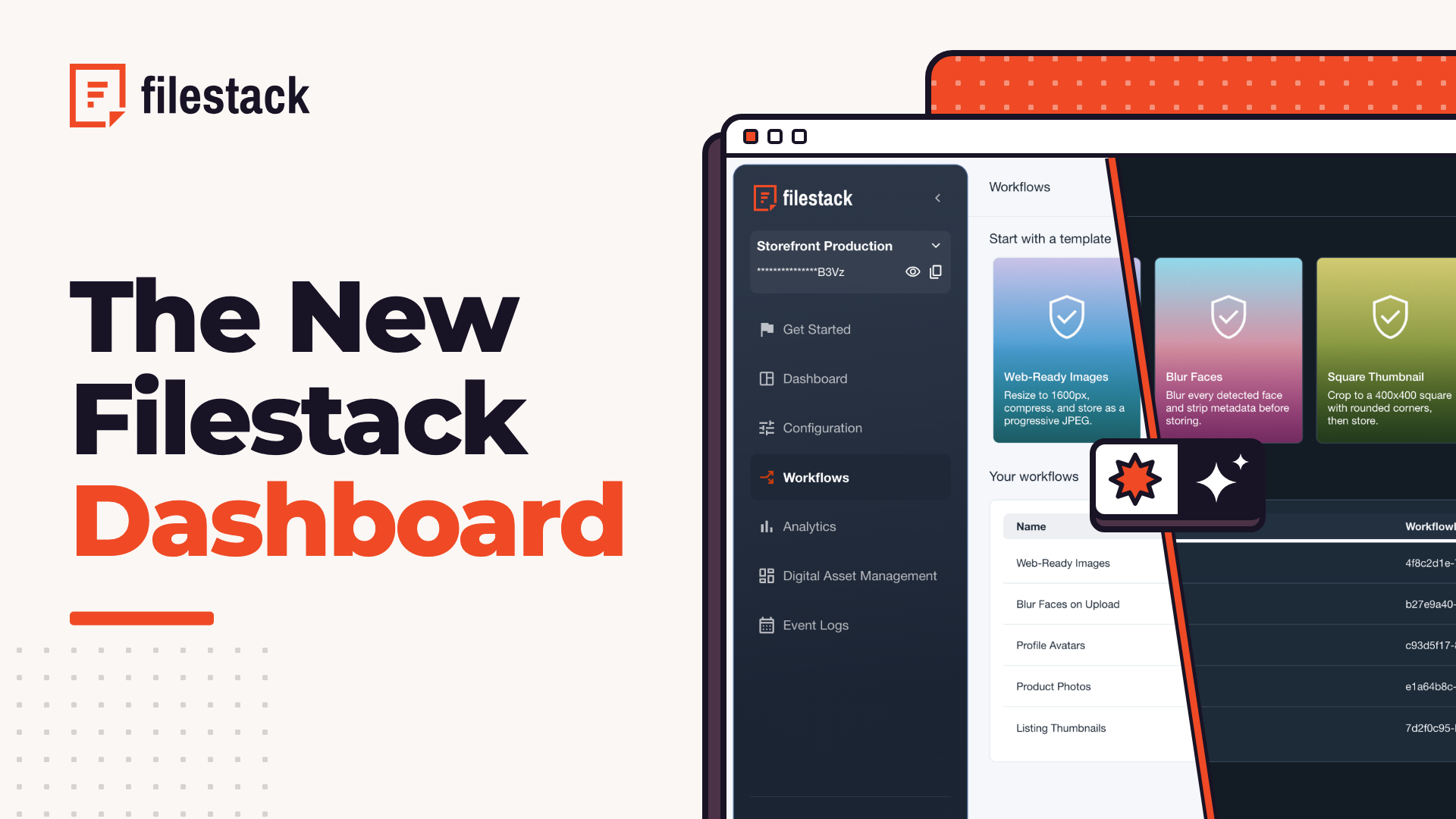
The Filestack dashboard has been rebuilt from the ground up. Every page now hangs off one sidebar, settings open in drawers beside the page you’re on, workflows start from a template or a copy from another app, and the whole dashboard comes in light and dark.
It’s live now at econsole.filestack.com, with the same sign-in. The dashboard walkthrough video tours every page.

Key takeaways
- One sidebar replaces the top bar and the three collapsible menus, with the app switcher and a masked API key at the top.
- Workflows start from a ready-made template, from scratch, or as a copy of a workflow from another app on the account.
- Authentication, storage and security settings share one Configuration page, and each setting opens in a drawer.
- The asset library opens every file in a detail page with an image editor, sharing and format conversion.
- Light, Dark and System themes, a language menu and a right-to-left layout sit in the account menu.
One Sidebar for Every Page
The old dashboard split navigation between a dark top bar and an uppercase sidebar with three collapsible groups, and each item opened as its own page. The new dashboard has one sidebar: Get Started, Dashboard, Configuration, Workflows, Analytics, Digital Asset Management and Event Logs, with Applications and Account at the bottom.
The app switcher sits at the top of the sidebar. Search for an app by name or API key to jump to it. The API key below it stays masked, with buttons to reveal and copy it, and the sidebar folds down to an icon rail when you want the room.

The Dashboard page shows usage for the billing window (uploads, transformations, delivery and storage, each against the plan’s limit) on the same page as the analytics chart, with a button to create a child app.
Workflows, From a Template or a Copy
The Workflows page opens on a row of ready-made templates above your saved workflows:
- Web-Ready Images resizes to 1600 px, compresses and saves as progressive JPEG.
- Blur Faces blurs every detected face and strips the metadata before storing.
- Square Thumbnail crops to a 400×400 square with rounded corners, then stores it.
Create New offers three starting points: build from scratch, start with a template, or duplicate from another API. The last one lists the workflows saved in the account’s other apps, so a workflow built for one app can be copied into another and changed there. Each row in the list has buttons to copy the workflow ID, edit it, duplicate it or delete it.
In the builder, each task is a box on a canvas, with open slots for adding branches. Click a box to set its options in a side panel, along with and/or conditions that decide when it runs. The header tracks the task count against the 20-task limit and shows when there are unsaved changes. Tasks outside the current plan carry a lock in the catalog.

Configuration on One Page
The old Configuration, Storage Settings and Security menus are now three tabs on a single Configuration page. Each setting is a card, and opening one slides a drawer in beside the page, so the rest of the configuration stays in view.
- Authentication holds App Settings, Dropbox, Gmail and Instagram auth, auth keys, an S3 source, storage aliases and webhooks.
- Storage connects Amazon S3, Azure, Google Cloud Storage, Dropbox or Rackspace, with a button to test the connection.
- Security holds Policy & Signature, with a policy generator, and Whitelisted Domains, with a field to test a URL against the rules.

Files, Usage and Activity
Digital Asset Management lists every file as a table or a thumbnail grid, with search and filters for date, file type and source along the top.

Open a file to edit its name, description and tags, download it, share it, copy its CDN link, convert it to PNG, WebP or PDF, or open its event log. Edit opens an image editor with cropping, resizing, 13 filter presets, adjustments, text layers, borders and overlays, and nothing changes on the file until you save.
Analytics charts activity across eight tabs, from General to Transform, by day, week or month. Event Logs records each action on a file with the date, the user and the application, filtered by date, action, file type and source.

Light, Dark or System
The account menu sets the theme to Light, Dark or System, picks the language, and switches the layout to right-to-left, which moves the sidebar to the right.
Open the New Dashboard
Sign in at console.filestack.com with the same account. Every setting from the old Configuration, Storage Settings and Security menus is on the Configuration page, and Get Started walks through the four steps from picking a framework to a first transformed image. New to Filestack? Create a free account at filestack.com/signup-free.
Frequently asked questions
Where do I find the new dashboard?
It is live at dev.filestack.com, and you sign in with the same account. Nothing needs migrating.
Where did the Storage Settings and Security menus go?
They are now tabs on a single Configuration page, alongside Authentication. Each setting opens in a drawer beside the page, so the rest of the configuration stays in view.
Can I reuse a workflow across applications?
Yes. Create New offers a duplicate from another API option, which lists the workflows saved in the account’s other apps so you can copy one in and change it there.
Does the new dashboard have a dark theme?
Light, Dark and System themes are in the account menu, along with the language picker and a right-to-left layout that moves the sidebar to the right.

Joshua is a web developer with over 4 years of experience building responsive, high-performance websites and web applications. Currently working as an AI Automation Specialist, he combines modern web development with automation to create efficient, scalable digital solutions. He shares practical insights on WordPress, web development, and emerging technologies.
Read More →