

A bad file upload UI can frustrate users right when they’re trying to finish something important, like submitting documents, uploading creative files, or completing signup forms. Even small issues such as unclear error messages, slow uploads, or confusing progress indicators can cause users to give up before finishing. Common file upload UIs are found in platforms that require document submissions, such as job boards, social media sites, and form builders.
A file upload user interface (UI) enables users to select, transfer, and send digital files from their local device to a server. File uploads may look simple, but creating a smooth experience takes careful design. Things like handling slow internet connections, showing upload progress clearly, supporting the right file types, and making uploads work well on mobile all play a big role in improving the experience.
The best upload file UI design patterns help users feel confident throughout the process. They reduce confusion, prevent common mistakes, and make uploads feel fast and reliable. In this article, we’ll look at 12 proven upload file UI design patterns and best practices in upload UI design that can improve completion rates and create a much better user experience.
Key Takeaways
- A better file upload UI reduces drop-offs and improves completion rates.
- Drag-and-drop, previews, and multi-file uploads make uploads easier and more intuitive.
- Resumable uploads and smart error handling prevent users from starting over.
- Mobile support, accessibility, and cloud imports are now standard expectations.
- Building uploads from scratch is complex, so tools like Filestack’s file upload infrastructure simplify the process.
To understand why these patterns matter, it’s important to first look at how file upload UX affects user behaviour and completion rates.
Why File Upload UI Directly Impacts Conversion Rates
File uploads are an important part of many user flows because they often stand between users and the task they want to complete. This makes upload experiences especially sensitive to friction. Even small UX issues during uploads can negatively affect completion rates, user trust, and overall retention. The right functionalities, such as clear progress indicators and error handling, are essential for a seamless upload experience.
Upload Friction Creates Abandonment
File uploads are an important part of many user flows, but they can also be frustrating when something goes wrong. Since users are already putting in effort to choose and upload files, even small issues can make them leave before completing the process. Slow uploads, confusing instructions, or failed uploads are some of the biggest reasons users abandon forms. Designing a file upload UI that takes user preferences into account can help minimise abandonment by aligning with individual habits and expectations.
Common friction points include:
- No progress bar during uploads, making users think the upload is stuck.
- Error messages that are confusing or unhelpful.
- File size or format restrictions are shown too late.
- Uploads are failing on mobile because the session expires.
- No way to continue after a network interruption.
The good news is that these problems are fixable. Improving the upload experience can lead to better completion rates and a smoother user experience overall.
Better Upload UX Improves User Trust
A smooth and clear upload experience helps users feel more confident while completing a task. Providing clear information through labels and hints helps users understand upload requirements and builds confidence in the process. When users can track upload progress, understand requirements, and easily recover from errors, they’re more likely to trust the product and finish the process successfully.
This leads to higher completion rates, fewer support requests, and a better overall experience, especially in important workflows like healthcare forms, financial document uploads, and enterprise onboarding.
Common Industries Where Upload UX Matters Most
File upload UX is important in almost every type of modern application, especially in industries where users regularly upload important files and documents.
- SaaS platforms: Onboarding documents, profile pictures, and shared assets.
- Healthcare: Medical records, insurance files, and intake forms.
- Real estate: Property images, reports, and contracts.
- E-commerce: Product photos, catalogs, and return documents.
- Education: Assignments, study materials, and student portfolios.
- Creative and media: Videos, audio files, and high-resolution designs.
One of the easiest ways to improve the upload experience is by making file selection faster and more intuitive.
Pattern #1 — Drag-and-Drop Upload Areas
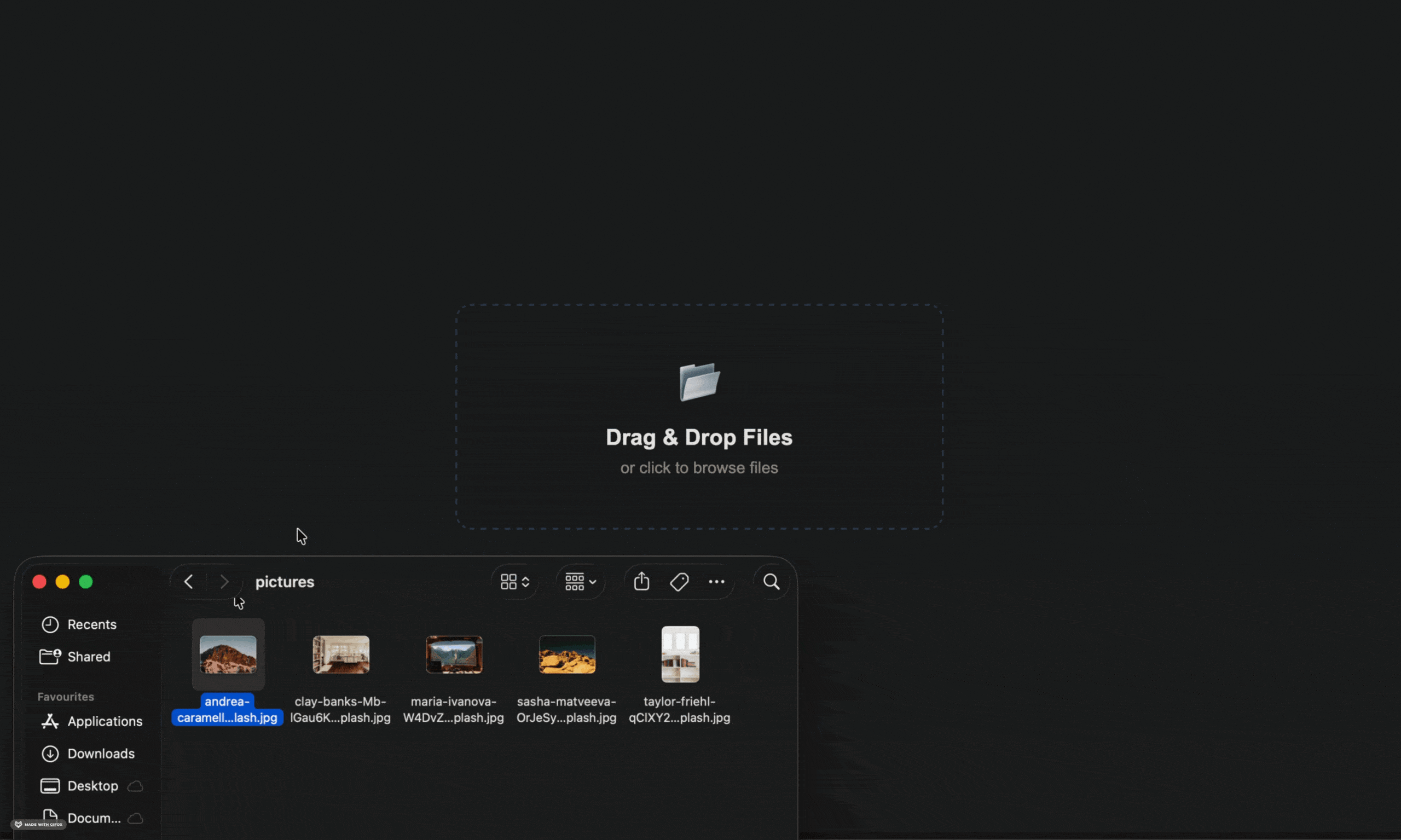
Users generally complete uploads faster and make fewer mistakes when using a well-designed drag-and-drop upload area instead of a traditional file picker alone. The interaction feels more natural and efficient for desktop workflows. A well-designed drag-and-drop area typically displays a list of files being uploaded, allowing users to easily manage and review their selections.
However, the experience only works well when the drag-and-drop UI is implemented carefully with clear feedback and good usability.
Why Drag-and-drop Improves Engagement
Drag-and-drop uploads are now a standard feature in modern desktop applications. They make the upload process faster and easier by letting users simply drag files into the upload area instead of repeatedly browsing and selecting files.
This creates a smoother experience, especially for bulk uploads, and makes the product feel more modern and user-friendly. Users can upload files more quickly and are less likely to make mistakes compared to using traditional file pickers alone.
Best Practices for Drag-and-drop Zones
A good drag-and-drop upload area should be easy to notice and simple to understand at a glance. Users should immediately know where to drop files and what’s supported without needing extra instructions.
- Make the upload area large and clearly visible.
- Add hover effects so users know the file drag is detected.
- Show supported file types and size limits directly in the upload box.
- Include a “Browse files” button for users who prefer the traditional upload method.
Mobile Fallback Considerations
Drag-and-drop works well on desktop, but users on a mobile device need a different upload experience. On touch devices, tap-to-upload should feel smooth, simple, and easy to use with large buttons and clear labels.
Instead of shrinking the desktop UI for smaller screens, the upload flow should be designed specifically for mobile devices, so file selection feels natural and user-friendly.
Making uploads easy to start is important, but users also need reassurance while the upload is happening.
Pattern #2 — Real-Time Upload Progress Indicators
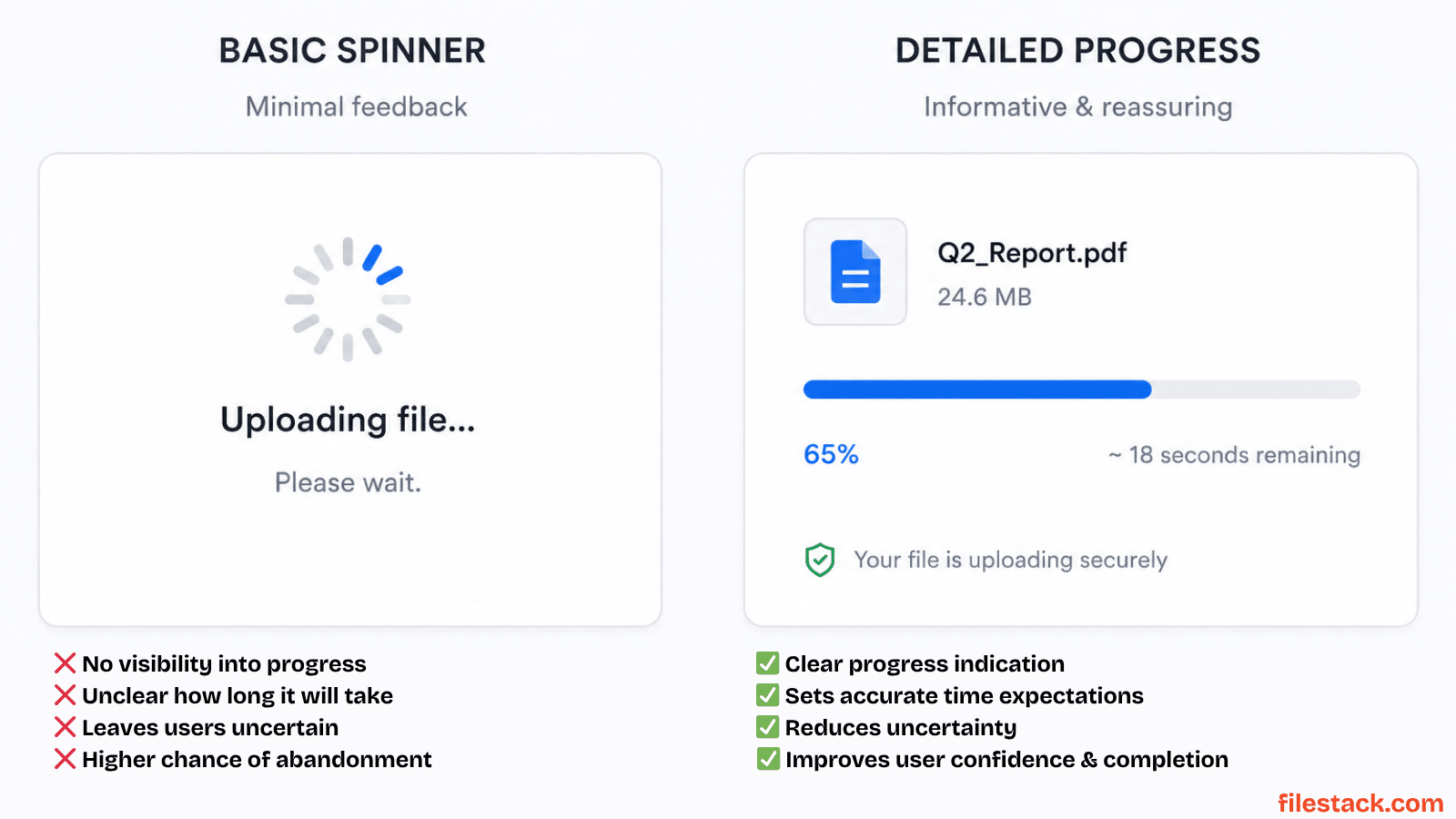
Endless loading spinners often make users think an upload is stuck or broken. Since users don’t know how long an upload should normally take, a lack of clear feedback can quickly lead to frustration and abandonment.
Progress indicators are important because they reassure users that the upload is working and help keep them engaged during the wait. After files are uploaded, they are often processed before being finalised, so the UI should clearly reflect this transition from uploading to processing to completion.
Users Need Visibility During Uploads
Users need clear feedback while files are uploading. If there’s no progress indicator, many users assume the upload is stuck or broken and may leave before it finishes. A good upload experience should clearly show that the upload is working and how long it might take.
Useful progress indicators can include:
- Upload percentage completed.
- Estimated time remaining for large files.
- Upload speed when needed.
- Smooth animations or status updates showing active progress.
Micro-interactions That Improve Perceived Performance
The transition between upload states should feel smooth and clear. Moving from “uploading” to “processing” to “complete” shouldn’t feel sudden or confusing.
Simple success animations like a checkmark, color change, or confirmation message help users know the upload finished successfully. This creates a more satisfying experience and reduces confusion or accidental re-uploads.
Avoiding Stalled Upload Confusion
Network issues can happen during uploads, so the UI should clearly show what’s going on. Users should be able to tell whether the upload is still running, retrying automatically, or has failed completely.
A progress bar stuck at 67% without any explanation can confuse users and make them leave the process. Clear status messages help users understand whether they should wait, retry, or take another action.
Even with better progress feedback, uploads can still fail if users discover problems too late in the process.
Pattern #3 — Inline File Validation Before Upload
The later an upload error appears, the more frustrating it becomes for users. Discovering a problem only after waiting through an upload can reduce trust and make users less likely to try again.
Validating files immediately when users select them is one of the easiest and most effective ways to improve upload UX. Developers should set file type and size limits early in the upload process to prevent errors and guide users.
Prevent Errors Before Submission
The best upload errors are the ones users never see. Checking files before the upload starts helps prevent common problems and saves users from wasting time on failed uploads.
It’s best to validate files as soon as they’re selected, including:
- File size (flag it immediately, before any upload attempt).
- File type (use MIME type checking, not just extension, extensions are easily renamed).
- Image dimensions or resolution where relevant (profile photos, print-ready assets).
- File name restrictions, if your system enforces them.
Instant Validation Improves Completion Rates
When users see a file type error only after the upload finishes, the experience becomes frustrating, and many users may not try again. Showing errors immediately with a clear explanation of supported file types helps users fix the issue quickly and continue without interruption.
Early validation also reduces support requests, since upload failures are one of the most common problems users contact support about.
Validation Messaging Examples
Clear and specific error messages help users fix problems quickly without confusion. Instead of showing generic errors, explain exactly what went wrong and how users can solve it.
For example:
- “This file type isn’t supported. Please upload a JPG, PNG, or PDF.”
- “Your file is 24 MB. The maximum allowed size is 10 MB.”
- “Image must be at least 800 × 600 pixels for this format.”
Messages like these make the upload process smoother and reduce the need for support.

Once validation is handled properly, the next step is improving efficiency for users uploading multiple files.
Pattern #4 — Multi-File Upload With Batch Actions
Any workflow that involves multiple files can become frustrating if users can only upload one file at a time. An effective uploader, the file upload UI component, should support batch actions and multiple file uploads to meet modern user expectations. For tasks like onboarding documents, product galleries, or media uploads, batch uploads are no longer an advanced feature; they’re a basic user expectation.
Why Batch Uploads Improve Workflows
In workflows where users often upload multiple files, forcing them to upload one file at a time creates unnecessary effort and slows down the process.
Repeating the same steps: selecting files, waiting for uploads, and starting again, adds friction quickly. Supporting multi-file uploads makes the experience faster, smoother, and more convenient for users.
Useful Batch Upload Features
The best multi-file upload experiences do more than just support multiple file selection. A customizable file uploader UI component can enhance usability by supporting features like drag-and-drop, multiple uploads, and progress indicators, making managing uploads easier and more flexible for users.
Useful features include:
- Select and upload multiple files in a single interaction
- Reorder files in the queue via drag-and-drop (important for sequenced documents)
- Remove individual files from the queue before upload starts
- Showing both overall upload progress and individual file status
UI Considerations for Large Upload Sets
If users upload many files at once, the upload queue should still feel fast and responsive. Features like virtualised lists, async thumbnail loading, and queue pagination help keep the UI smooth even with large file batches.
Tools like Filestack’s upload picker also handle large uploads efficiently by managing thumbnails and progress tracking without slowing down the interface.
Faster uploads are helpful, but users also need confidence that they selected the correct files before submitting them.
Pattern #5 — Image and File Previews
“I uploaded the wrong file” is a problem that a good upload UI can often prevent. Showing a file preview before submission helps users quickly confirm they selected the correct file and catch mistakes before uploading. File previews are particularly valuable for uploads to social media, where users want to confirm images or videos before sharing.
Previewing Reduces User Uncertainty
Showing a file preview before upload helps users confirm they selected the correct file. It’s a simple feature that can greatly reduce accidental uploads and user mistakes.
When users can see a thumbnail or preview before submitting, they’re less likely to upload the wrong file, outdated versions, or incomplete assets.
Effective Preview Design Patterns
Different file types need different kinds of previews to help users verify uploads easily.
- Use thumbnail previews for images so users can quickly spot mistakes.
- Show the first page for PDFs to confirm the correct document.
- Display file name, size, and type details for non-visual files like ZIPs or spreadsheets.
Performance Considerations
File previews should load smoothly without blocking the upload process. Generate previews in the background and display them as they become available instead of making users wait before starting the upload.
For large files, show placeholders or loading states while previews are being created so the interface still feels responsive and fast.
As file sizes grow larger, upload reliability becomes just as important as upload speed.
Pattern #6 — Resumable Uploads for Large Files
Without resumable uploads, even a small network interruption can force users to restart the entire upload. For mobile users or large file uploads, this is a very common problem.
Chunked and resumable uploads make the experience more reliable by allowing uploads to continue from where they stopped instead of starting over.
Why Resumable Uploads Matter
For large files like videos, medical images, or creative assets, upload reliability is extremely important. Without resumable uploads, even a small network interruption or accidentally closing the tab can force users to restart the entire upload.
For users uploading large files on unstable connections, restarting from zero can be frustrating enough to make them abandon the process completely.
Technical Approaches Developers Use
Resumable uploads improve reliability by breaking files into smaller chunks before uploading.
Here’s how they work:
- The file is split into smaller parts on the client side.
- Each chunk is uploaded separately and is confirmed by the server.
- If the connection fails, only the missing chunks are uploaded again.
- Once all chunks finish uploading, the server combines them into the final file.
Use Cases Where Resumable Uploads are Critical
Resumable uploads are especially important for platforms that handle large or critical files, such as video apps, healthcare systems, legal document platforms, and creative collaboration tools. In these cases, a failed upload can waste significant time and frustrate users.
Tools like Filestack’s file upload infrastructure handle chunking and resumable uploads automatically, making large file uploads more reliable without adding extra complexity for developers.
Upload behaviour has also changed as more users rely on cloud storage instead of local files.
Pattern #7 — Cloud Import Options
File storage habits have changed. Many users, especially on mobile devices, now keep their files in cloud services like Google Drive or Dropbox instead of storing them locally. Modern file upload UIs often integrate with social media platforms such as Facebook and Instagram, allowing users to upload files directly from these sources for a more streamlined experience.
Upload flows that only support local file uploads can create unnecessary friction and reduce completion rates because they don’t match how users actually manage files today. Designers can be inspired by the seamless upload experiences offered by leading social media platforms when creating their own file upload UIs.
Users Increasingly Upload from Cloud Storage
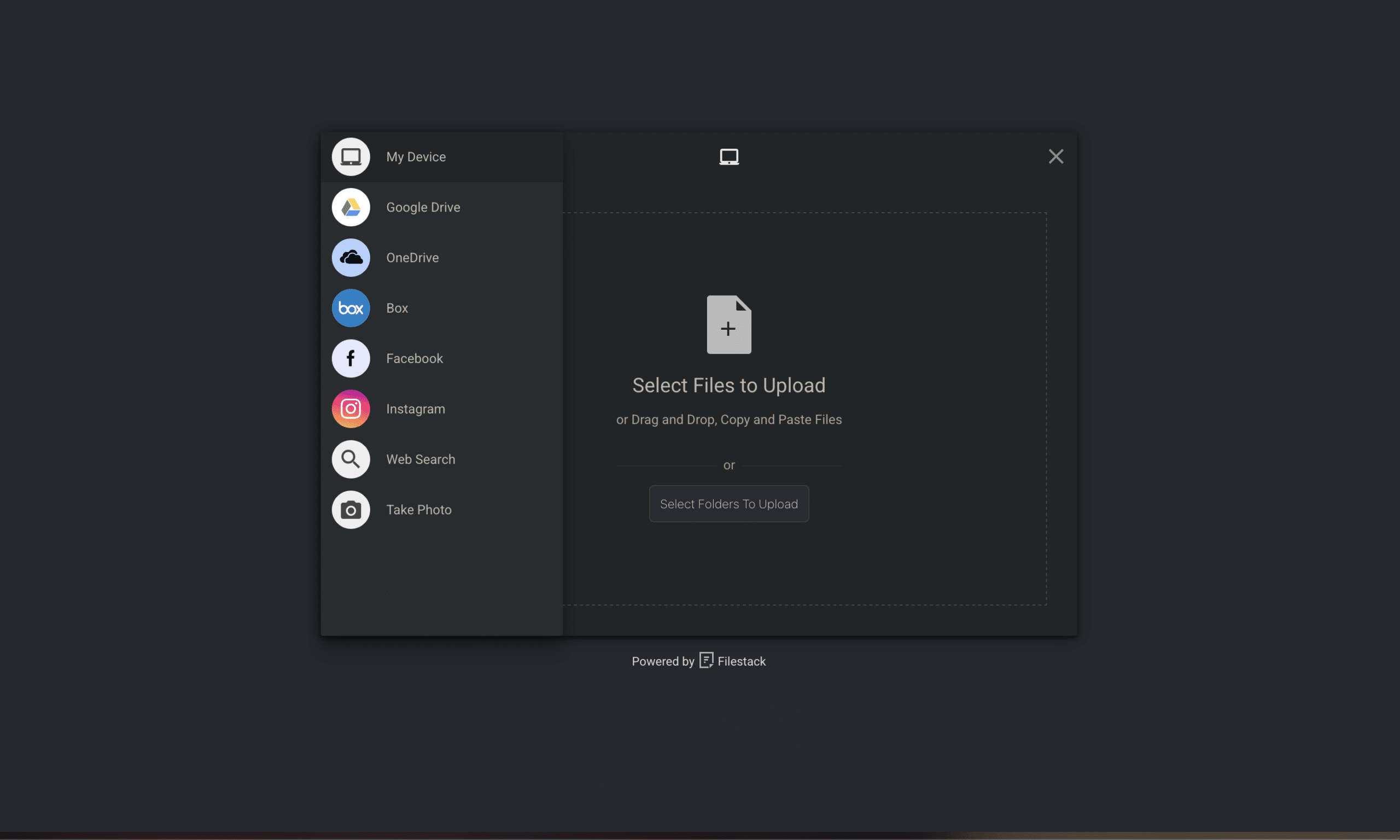
Many users now store files in cloud services like Google Drive, Dropbox, or OneDrive instead of directly on their devices. Requiring users to first download a file and then upload it again adds unnecessary steps and slows down the experience.
This extra friction is especially frustrating on mobile devices, where users expect faster and simpler workflows.
Benefits of Cloud Import Integrations
Popular cloud storage options like Google Drive, Dropbox, OneDrive, and Box are useful to support in modern upload flows. For media-focused apps, integrations with platforms like Instagram and Facebook can also improve the experience.
Cloud imports are especially valuable on mobile devices, where managing local files can be difficult and downloading files before uploading them again takes extra time and storage space.
Security Considerations for Cloud Imports
Cloud file imports need secure OAuth handling to protect user data. Apps should request only the permissions they actually need, use temporary access tokens, and avoid storing sensitive credentials longer than necessary.
For better security and performance, file transfers should happen directly between servers whenever possible instead of passing large files through the user’s device. Tools like Filestack’s multi-source upload picker help manage these OAuth flows and cloud integrations across major providers.
Supporting cloud uploads is important, but modern upload experiences also need to work seamlessly on mobile devices.
Pattern #8 — Mobile-Optimised Upload Interfaces
More than half of web traffic now comes from mobile devices, but many upload interfaces are still designed mainly for desktop users. Tools like Adobe XD are often used to prototype and test mobile-optimised file upload UIs, ensuring a seamless experience across devices. As a result, uploads may technically work on mobile while still feeling slow, awkward, and difficult to use.
These frustrating experiences often lead users to abandon the upload process before completing it.
Mobile Upload Behaviour Differs Significantly
Mobile upload experiences are very different from desktop. Simply shrinking a desktop upload UI for smaller screens often creates a frustrating mobile experience.
Mobile users are usually uploading photos directly from their camera, using slower or unstable mobile networks, and interacting with the app using touch controls on small screens. Upload flows should be designed specifically for these mobile behaviours to feel smooth and easy to use.
Mobile UX Best Practices
Designing for mobile uploads means rethinking the interaction from the ground up:
- Touch targets must meet minimum size requirements (44×44pt at minimum, larger is better).
- Camera integration should be native and direct, letting users shoot and upload in a single flow without leaving the app.
- The upload interface should be responsive across screen sizes, not just scaled down.
- Session timeouts are more common on mobile; resumable uploads are especially important here.
Optimising Uploads on Slower Connections
Compressing files before upload is one of the best ways to improve mobile upload performance. Photos taken on modern smartphones are often very large, and compressing them before uploading can greatly reduce upload time, especially on slower mobile networks.
For slower connections, showing the uploaded file size in bytes can feel more useful than only showing a percentage. Offline upload queues can also improve the experience by automatically continuing uploads once the internet connection returns.
Even the best upload systems can run into interruptions, which makes recovery handling a critical part of the experience.
Pattern #9 — Smart Error Recovery Flows
Many upload flows handle errors poorly by showing vague messages and forcing users to restart from the beginning. This creates frustration and increases abandonment rates.
A better approach treats upload failures as temporary interruptions. Clear error messages, retry options, and resumable uploads help users recover quickly and continue the process smoothly.
Most Upload Failures are Recoverable
Most upload failures are temporary problems that users can recover from. Issues like weak internet connections, expired sessions, or temporary server errors shouldn’t force users to restart the entire upload process.
A good upload UI should clearly handle recoverable errors and help users continue smoothly. Common recoverable problems include network interruptions, expired logins, temporary server issues, and uploads pausing when a mobile browser goes into the background.
Error Messaging that Improves Retention
How upload errors are shown to users is just as important as fixing the technical issue behind them. Clear and helpful messaging makes recovery easier and reduces frustration.
Good upload error handling should:
- Use plain language: “Your upload was interrupted. Tap to resume.” not “Error 503: Gateway Timeout.”
- Let users resume or retry uploads instead of starting over.
- Keep uploaded files in the queue so users don’t need to select them again.
- Auto-retry silently for temporary failures before showing an error to the user.
Examples of Effective Recovery States
The best upload recovery systems help users continue from where the upload stopped instead of restarting everything from the beginning.
Useful recovery features include:
- Resuming uploads from the last completed chunk.
- Restoring the upload queue after a page refresh.
- Automatically continue uploads when the internet connection returns.
These small improvements make upload failures feel like temporary pauses instead of major problems.
Beyond reliability and performance, upload interfaces should also be accessible and usable for every user.
Pattern #10 — Accessible File Upload Experiences
In many regions, accessible interfaces are a legal requirement, not just a nice-to-have feature. But accessibility improvements also make upload experiences better for everyone by creating clearer layouts, better labels, and more reliable interactions.
Accessibility Directly Affects Usability
Accessibility is often overlooked in file upload UI, but it has a huge impact on usability. Many custom upload interfaces become difficult to use with keyboards or screen readers, especially after heavily styling the default file input.
Users with screen readers, keyboard navigation, or motor impairments interact with upload controls differently, so upload flows should be designed to work smoothly for everyone.
Accessibility Best Practices for Uploads
These accessibility basics are essential for creating a better and more inclusive upload experience:
- All upload controls must be fully keyboard-navigable with clearly visible focus states.
- File input labels must be descriptive, not just “Upload,” but “Upload your signed consent form”.
- Error messages must be announced to screen readers via aria-live regions, not just displayed visually.
- Any drag-and-drop interaction must have a keyboard-accessible equivalent.
- High-contrast interactive states for users with low vision.
Common Accessibility Mistakes
Some of the most common accessibility problems in file upload UI come from custom designs that ignore keyboard and screen reader support. These issues can make uploads difficult or impossible for many users.
Common accessibility mistakes include:
- Replacing the native file input with inaccessible custom elements.
- Creating drag-and-drop upload areas without keyboard alternatives.
- Using unclear button labels like “Click here”.
- Showing visual error messages without screen reader announcements.
The good news is that these problems are usually easy to fix, and the improvements make the upload experience better for everyone.
Accessibility helps users navigate uploads more easily, but clear guidance also plays a major role in preventing mistakes.
Pattern #11 — Contextual Upload Instructions
Most users won’t read documentation before uploading a file. They usually try the upload first and only look for help after something goes wrong.
This is especially important when designing a file upload UI for non-technical users, where clear labels, simple instructions, and helpful error messages can prevent confusion before it happens.
Showing clear instructions directly inside the upload UI helps users avoid mistakes from the start and creates a smoother upload experience.
Users Need Guidance at the Right Moment
Users shouldn’t have to guess what files they can upload. Clear instructions shown at the right time help prevent mistakes and make the upload process smoother.
Instead of hiding requirements in help pages or error messages, show important details like supported file types, size limits, and upload rules directly in the upload UI before users start uploading.
Where Instructions Should Appear
Where and when you show upload instructions is just as important as the instructions themselves.
- Before file selection: Accepted formats, maximum file size, recommended dimensions. This prevents the wrong file from entering the queue at all.
- During an active upload queue: A format reminder alongside each queued item helps users catch issues before hitting submit.
- Near validation states: Specific guidance about what went wrong and how to fix it, directly next to the affected file.
Examples of Concise Upload Guidance
Clear and specific upload instructions help users understand requirements quickly and reduce mistakes.
For example:
- Profile photo: “Square crop recommended. JPG or PNG, max 5 MB.”
- Document upload: “We accept PDF, DOCX, or TXT. Files are encrypted during transfer.”
- Media asset: “For best results, upload at native resolution. We’ll optimise for delivery.”
Keep the main instructions short and easy to scan. Extra details can be placed inside tooltips or help icons so the UI stays clean and uncluttered.
A successful upload shouldn’t feel like the end of the experience; users still need confirmation and direction afterwards.
Pattern #12 — Post-Upload Confirmation and Next Steps
The upload confirmation step is an important part of the user experience, but many products don’t give it enough attention. A clear success state helps users know the upload worked correctly and reduces confusion or duplicate uploads.
Showing a summary of the uploaded file along with clear next-step actions, helps users continue smoothly and builds trust in the product.
Completion Feedback Improves Confidence
The upload completion state is an important part of the user experience, but many applications don’t give users enough confirmation that the upload actually worked. When users aren’t sure whether the upload finished successfully, they may upload the file again or leave the process incomplete.
A good confirmation state should clearly show that the upload succeeded. This can include a success icon, color change, or short animation. It should also display details about the uploaded file, such as the file name or preview, and guide users toward the next step in the workflow.
Useful Post-Upload Actions
The best upload confirmation screens help users continue their workflow smoothly instead of stopping after the upload finishes.
Useful post-upload actions include:
- Edit file metadata or tags without navigating away.
- Replace the uploaded file if the wrong version was submitted.
- Share or copy a link to the uploaded asset.
- Continue to the next step in the surrounding workflow.
Why Post-Upload UX Matters
A clear and satisfying upload confirmation helps users feel confident that everything worked correctly. This reduces duplicate uploads and encourages users to continue the rest of the workflow without hesitation.
In SaaS and enterprise applications, especially, the upload confirmation step plays a big role in building trust. A smooth confirmation experience makes the product feel reliable, while a confusing or weak confirmation can create uncertainty for future interactions.
Behind every smooth upload experience is a strong technical foundation that keeps everything reliable and secure.
Technical Considerations for Developers Building File Upload UI
Good upload UX depends on a strong underlying infrastructure. Performance, security, and scalability are essential for keeping upload experiences fast, reliable, and smooth in real-world usage.
Here are some of the key things teams should consider when building or improving file upload systems.
Performance Optimisation Strategies
Building a fast and reliable file upload experience requires optimisation at multiple levels.
Some important performance techniques include:
- Parallel uploads: Upload chunks or files simultaneously rather than sequentially.
- File chunking: Split large files for better reliability and smoother progress tracking.
- CDN delivery: Route uploads through geographically distributed infrastructure to reduce latency.
- Client-side compression: Reduce file size before transfer, where quality permits, especially on mobile.
Security Best Practices
File uploads can create serious security risks if they aren’t handled properly. A secure upload system should validate and protect files at every stage.
Important security practices include:
- Validating file types on the server side.
- Scanning uploaded files for malware or harmful content.
- Using signed upload URLs for secure access.
- Storing files with proper access controls and permissions.
- Removing sensitive image metadata like EXIF location data when needed.
Scalability Requirements
An upload system that works for a small number of users may struggle as traffic grows. Scaling file uploads requires infrastructure that can handle performance, reliability, and large file challenges efficiently.
Important scalability features include:
- Support for many simultaneous uploads.
- Faster uploads for users across different regions.
- Reliable handling of large files without server issues.
- Backup and failover systems to prevent downtime.
This is why many teams eventually outgrow custom-built upload systems as their product scales.
As upload systems become more advanced, building and maintaining every feature in-house becomes increasingly difficult.
How Modern Upload APIs Simplify File Upload UI Development
Building a reliable file upload system in-house involves solving many complex problems, including browser compatibility, mobile upload behaviour, security, cloud integrations, and long-term maintenance as technologies change.
Purpose-built upload infrastructure helps handle these challenges at the platform level, allowing teams to focus more on product development instead of upload-related engineering issues.
Teams comparing technical options can use a file upload API guide to understand SDKs, cloud integrations, resumable uploads, and security requirements before choosing an upload solution.
Challenges Teams Face Building Uploads in-house
Building a custom file upload system involves much more than creating a simple upload button. Teams also need to handle browser compatibility issues, mobile upload behaviour, unreliable networks, cloud storage integrations, security, malware scanning, and resumable uploads.
Each of these challenges requires significant engineering effort and ongoing maintenance as browsers, devices, and APIs continue to change.
Features Developers Should Look for in Upload Infrastructure
When choosing a file upload tool or API, teams should look for features that improve reliability, flexibility, and developer experience.
Important things to consider include:
- Customizable UI components (drag-and-drop, multi-source picker).
- Built-in cloud storage integrations (Google Drive, Dropbox, OneDrive, Box).
- Resumable upload support out of the box.
- Real-time image and file transformations.
- SDKs for popular frameworks and platforms.
- Strong security practices and compliance support.
How Filestack Supports Modern Upload Experiences
Filestack’s file upload infrastructure includes many of the upload UX patterns covered in this article, including drag-and-drop uploads, cloud storage imports, resumable uploads, and mobile-friendly file selection. It also handles uploads through a global infrastructure with built-in optimisation and intelligent chunking for large files.
For development teams, this removes much of the complexity involved in building and maintaining a reliable upload system. Instead of spending weeks solving issues like browser compatibility, security, cloud integrations, and upload reliability, teams can focus more on building product features and improving user experience.
This approach is especially useful for products with high upload volume, large file handling needs, or support for multiple file sources across desktop and mobile devices.
Ultimately, great upload experiences come from combining thoughtful UX patterns with reliable infrastructure and performance.

Conclusion
File upload UI has a huge impact on user experience. An upload flow might technically work, but small UX issues like missing progress feedback, confusing errors, or failed uploads on mobile can still frustrate users and increase abandonment rates.
The good thing is that improving upload UX doesn’t always require a complete rebuild. Small improvements like better validation, clear progress indicators, and smoother error recovery can make uploads feel much faster and more reliable. Each improvement removes friction and helps more users complete the process successfully.
For teams building uploads from scratch, maintaining a reliable system across browsers, devices, cloud providers, and network conditions can quickly become complex. That’s why many teams eventually adopt dedicated upload infrastructure instead of continuing to manage everything in-house.
The best upload experiences feel simple and effortless. Users select a file, the upload works smoothly, and they move on without confusion or frustration.
FAQs
What is a file upload UI?
A file upload UI is the part of an application that lets users select, preview, and upload files. It includes elements like upload buttons, drag-and-drop areas, and progress bars, along with features like file validation, previews, and upload management that help users complete uploads smoothly.
Why do users abandon file uploads?
The most common reasons users abandon uploads include missing progress indicators, confusing file requirements, failed uploads without recovery options, slow uploads with no clear feedback, and poor mobile experiences. Improving these areas with better upload UX patterns can quickly increase completion rates.
How do drag-and-drop uploads improve completion rates?
Drag-and-drop makes uploads faster and easier by reducing the number of steps users need to take. It also makes the interface feel more modern and user-friendly. For uploading multiple files, drag-and-drop is much quicker than selecting files one by one.
What is the best way to show upload progress?
The best upload progress indicators show more than just a loading spinner. They should include a progress bar, estimated time remaining for large files, and clear states like “uploading,” “processing,” and “complete.” For uploads that take more than a few seconds, avoid endless spinners without details. Users often assume something is broken when they don’t see clear progress feedback.
How can developers improve mobile file uploads?
For mobile uploads, use large touch-friendly buttons, direct camera support, and responsive behaviour for slower connections. Compress files before upload to reduce upload time on mobile networks, and use resumable uploads to handle interruptions or connection changes smoothly.
What are resumable uploads?
Resumable uploads break files into smaller chunks that upload separately. If the connection is interrupted, the upload can continue from the last completed chunk instead of starting over. This is especially important for large files and mobile users with unstable internet connections.
How do cloud import options improve upload UX?
Many users keep their files in cloud storage services like Google Drive or Dropbox instead of on their devices. Cloud import integrations let users upload files directly from these platforms without downloading them first, creating a faster and smoother experience, especially on mobile devices.
What accessibility features should a file upload UI include?
At minimum, file upload UI should support keyboard navigation, visible focus states, clear input labels, screen-reader-friendly error messages using aria-live, and keyboard-accessible alternatives for drag-and-drop uploads. Accessibility is not just a better user experience; it’s also a legal requirement in many regions for public-facing applications.
How can file upload errors be reduced?
Client-side validation is one of the most effective ways to improve upload UX. Checking file type, size, and format before the upload starts helps users fix problems immediately instead of discovering errors after waiting for an upload to finish.
Clear instructions, better error recovery, and resumable uploads also help prevent common upload failures. Reliable upload infrastructure further improves the experience by handling issues like network interruptions, browser compatibility, and large file uploads more smoothly.
For developers building scalable upload experiences, explore Filestack’s File Upload product to see how the patterns in this article are implemented at the infrastructure level.

Shefali Jangid is a web developer, technical writer, and content creator with a love for building intuitive tools and resources for developers.
She writes about web development, shares practical coding tips on her blog shefali.dev, and creates projects that make developers’ lives easier.
Read More →