

Uploading a file online seems simple: click a button, choose a file, and upload it. But in reality, there’s a lot happening behind the scenes.
If you’ve ever seen a large upload fail halfway, used an app that freezes on a weak internet connection, or tried building file uploads yourself, you know it’s not always easy.
In this guide, we’ll explore the main ways files are uploaded: through browsers, mobile apps, and APIs. We’ll also look at what makes a file upload system reliable and how tools like Filestack can help make the process smoother.
Key Takeaways
- Browser uploads can send files directly to cloud storage instead of your server, making uploads faster and easier to scale.
- Mobile uploads need features like resumable uploads and file compression to work smoothly on unstable internet connections.
- API-based uploads use signed URLs or secure tokens so users can upload files safely without exposing private credentials.
- A reliable upload system should include file validation, upload progress, retry support, and processing after the upload is complete.
- Filestack offers one SDK and API for browser, mobile, and server uploads, along with built-in CDN delivery and file transformations.
To see why modern uploads work differently today, let’s first understand what actually happens during a file upload.
What Does It Mean to Upload a File Online?
At its most basic level, uploading a file online means transferring data from a local device to a remote server or cloud storage. The process usually works like this:
- The user selects or captures a file.
- The file is uploaded through the internet, usually over HTTPS.
- The file is stored on a server, cloud bucket, or CDN-backed storage.
- The file may then be processed: resized, compressed, scanned, or indexed.
What has changed over time is how uploads are handled behind the scenes. Modern applications often upload files directly from the user’s device to cloud storage instead of sending them through the backend server first.
This approach reduces server load, improves upload speed, and makes applications much easier to scale.
Now let’s look at how this process works in different environments, starting with browser-based uploads.
How to Upload a File Online From a Browser
Here’s how modern browser-based file uploads work, from selecting files and drag-and-drop support to direct-to-cloud uploads and progress handling.
The upload experience users see in the browser is usually much more advanced than a simple file input.
File Pickers, Drag-and-Drop, and Clipboard Paste
The most common way to upload files in a browser is with the simple <input type="file"> element. It works in all modern browsers, needs no extra setup, and lets users choose files from their device.
To make uploads more user-friendly, modern apps often add features like:
- Drag-and-drop uploads: Users can drag files into an upload area.
- Clipboard paste support: Great for quickly uploading screenshots or copied images.
- Multiple file selection: Allows users to upload many files at once.
Building these features yourself is possible, but it comes with many edge cases. Different browsers handle drag-and-drop events differently, clipboard support is inconsistent, and mobile browsers often behave in unexpected ways.
Filestack’s File Picker simplifies this process by providing a ready-to-use component. It supports local file uploads, camera capture, drag-and-drop, and cloud storage integrations like Google Drive, Dropbox, and Instagram, all in one place.
Behind the upload interface, the upload architecture itself also plays a huge role in performance and scalability.
Direct-to-Cloud Uploads
The traditional upload systems usually send files through the backend server before storing them in the cloud.
Traditional: Browser → Your Server → Cloud Storage

Modern:       Browser → Cloud Storage (directly)
In the modern approach, the server creates a secure token or signed URL, and the browser uploads the file directly to cloud storage. After the upload is complete, the backend simply receives the file URL or upload result.
This method has several advantages: faster uploads, lower server bandwidth usage, better support for large files, and easier scalability.
Filestack uses this direct-to-cloud upload approach by default. When users upload files through its picker or API, the files go directly to Filestack’s infrastructure, so your server doesn’t need to handle the actual file data unless required.
But uploading files directly to cloud storage is only one part of creating a good upload experience.
Handling Progress, Errors, and Retries
A simple <input type="file"> with a submit button gives users very little feedback. For larger files, this can create a frustrating experience.
A good file upload system should include:
- Real-time progress indicators: Show how much of the file has been uploaded instead of only showing a loading spinner.
- File validation before upload: Check file type and size on the client side before uploading.
- Retry logic: Retry failed uploads or chunks automatically without starting over.
- Meaningful error messages: Explain why the upload failed so users know how to fix it.
Putting all these pieces together, a modern browser upload workflow usually follows a process like this.
A Typical Browser Upload Flow
Here’s what a typical browser upload flow looks like:
- User selects or drags a file into the upload area.
- App checks the file type and size before uploading.
- App requests secure upload credentials from the backend, such as a token or signed URL.
- File uploads directly to cloud storage using those credentials.
- Storage service returns a file URL or file identifier.
- App saves the file URL and shows a success message to the user.
While browser uploads are common, mobile uploads introduce a completely different set of challenges.
How to Upload a File Online From a Mobile App
Here’s how mobile file uploads work, including camera access, background uploads, resumable transfers, and handling unreliable mobile networks on iOS and Android.
Native Mobile Uploads (iOS and Android)
Mobile apps can upload files from different sources, such as:
- Camera and photo library: Users can capture photos or select images from their device.
- Document pickers: Users can choose files from local storage or cloud apps like Google Drive.
- Background uploads: Uploads can continue even when the app is minimised or running in the background.
iOS and Android handle these features differently, which can make development more complicated. Filestack provides SDKs for both platforms, making it easier to build a consistent upload experience without managing separate implementations.
Optimising for Mobile Networks
Mobile internet connections can be unpredictable. An upload that works perfectly on Wi-Fi may fail on slower mobile networks or in areas with a weak signal. That’s why mobile uploads need a few important features:
- Resumable uploads: Files are uploaded in smaller chunks. If the connection breaks midway, the upload continues from where it stopped instead of starting over.
- File compression before upload: Reducing file size before uploading makes uploads faster and helps avoid timeouts, especially for large images and videos.
- Background uploads: Uploads can continue even when users lock their phone or switch to another app.
Security Considerations
Mobile apps need extra security because app code can sometimes be reverse-engineered. For file uploads, that means you should:
- Never store API keys or storage credentials directly inside the app.
- Use short-lived upload tokens generated by your backend.
- Always use HTTPS for secure file transfers.
- Restrict access so only authorised users can view uploaded files.
Filestack manages token-based authentication through its SDKs, so your app does not need to store long-term credentials.
A Typical Mobile Upload Flow
Here’s what a typical mobile upload flow looks like:
- User selects a file or takes a photo/video using the camera.
- The app may compress or resize the file before uploading.
- App requests secure upload credentials from the backend.
- File uploads directly to cloud storage in smaller chunks.
- Backend receives a webhook or app checks when the upload is complete.
- The app shows the uploaded file or a success message to the user.
Beyond browsers and mobile apps, uploads are also commonly handled directly through APIs.
How to Upload a File Online Using an API
Here’s how API-based file uploads work, from server-side uploads and secure token generation to direct client uploads and automated file processing workflows.
Some uploads happen entirely behind the scenes without direct user interaction.
Server-Side Uploads
Sometimes files are uploaded by backend systems instead of users. This is common for tasks like:
- Uploading generated reports or documents.
- Scanning or processing files before storage.
- Moving files between storage providers.
- Running uploads triggered by webhooks or automation.
In these cases, the server uploads files directly using an API request. The file is usually sent as binary data or multipart form data.
Filestack’s REST API supports this workflow, allowing servers to upload files, process them, and generate CDN-backed file URLs in a single pipeline.
For frontend applications, modern APIs usually follow a more secure direct-upload approach.
API-Based Direct Uploads (From the Client)
For client-side uploads in apps built with frameworks like React or Vue, secure tokens are used instead of exposing API keys directly in the frontend.
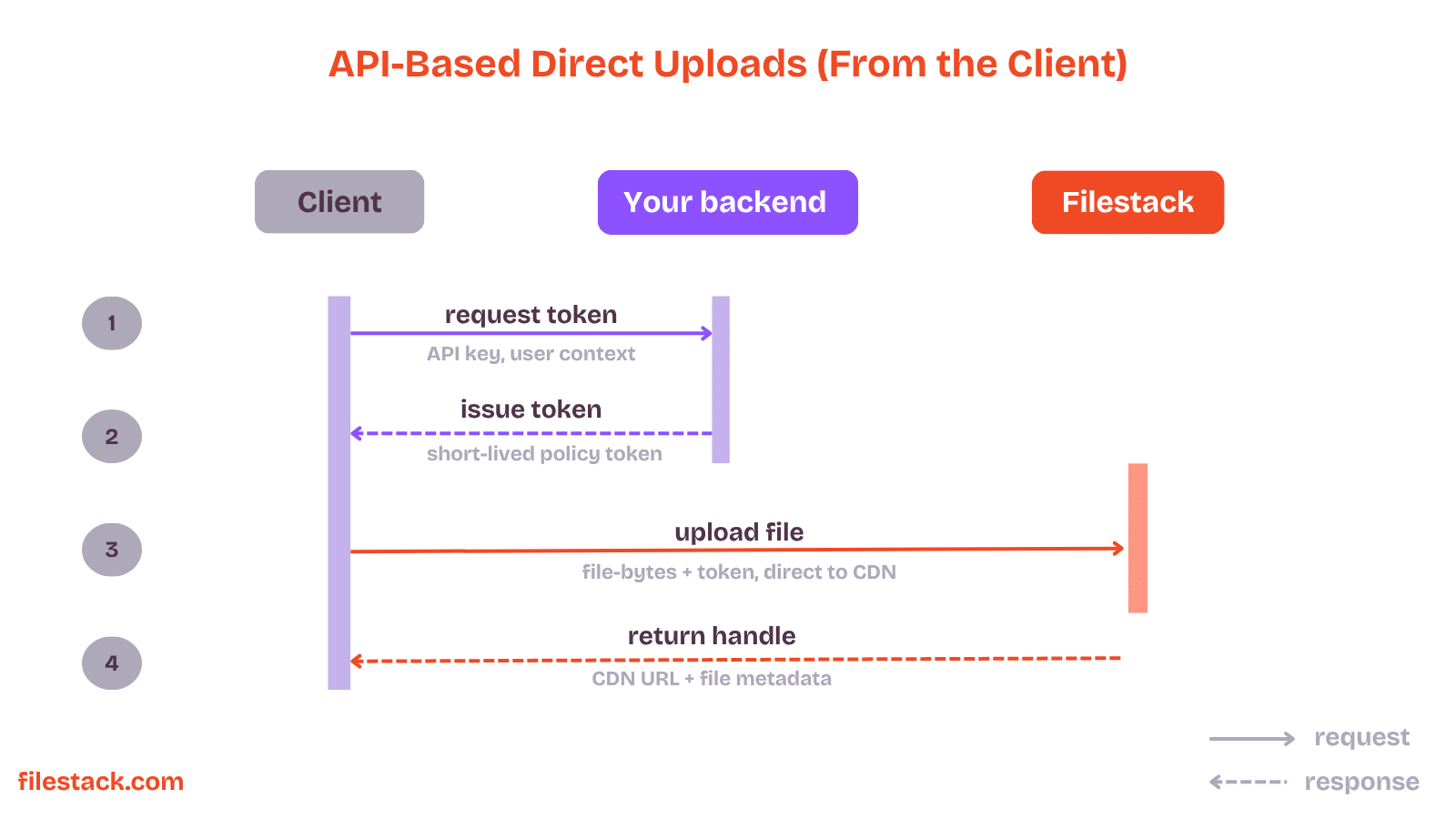
Here’s how the process works:
- Frontend asks the backend for an upload token.
- Backend creates a short-lived token using the Filestack API key.
- Frontend uses that token to upload the file directly to Filestack.
- Filestack returns a file handle or file URL.
- Frontend sends that handle back to the backend for storage or database updates.
This approach keeps sensitive credentials secure while still allowing fast direct-to-cloud uploads.
This workflow is easier to understand when visualised step by step.
Once the upload flow is set up, the actual implementation can stay surprisingly simple.
Example API Upload (Node.js)
Here’s a simple example of uploading a file using the Filestack Node.js SDK with real-time progress tracking:
const filestack = require('filestack-js');

const client = filestack.init('YOUR_API_KEY');

const response = await client.upload(fileBuffer, {

  onProgress: ({ totalPercent }) => {

    console.log(`Upload progress: ${totalPercent}%`);

  }

});

console.log(response.url); // CDN-backed file URL
With just a few lines of code, the SDK handles upload progress, retries, and chunked uploads automatically.
No matter which upload method you use, some features are essential for reliability at scale.

Key Features for Production-Ready File Uploads
Here are some important features to ensure uploads stay fast, secure, and dependable at scale:
Resumable Uploads
Resumable uploads are important for handling large files reliably. Instead of uploading the entire file at once, the file is split into smaller chunks, and each chunk is uploaded separately. If the connection fails, only the failed chunk is uploaded again instead of restarting the whole upload.
Filestack supports resumable uploads automatically for files above a configurable size limit.
At the same time, uploads also need strong validation and security checks.
File Validation
File validation should happen both before and after the upload.
- Client-side validation checks things like file type and size before uploading, helping users catch issues early and reducing unnecessary uploads.
- Server-side validation adds security by verifying the actual file after upload. This is important because file types reported by the client can be faked or modified.
When validating uploaded files, make sure to check:
- Allowed file types using both file extensions and actual MIME types.
- Maximum file size limits.
- Minimum image dimensions when uploading images.
- File integrity using checksums for important or sensitive files.
Real-Time Processing
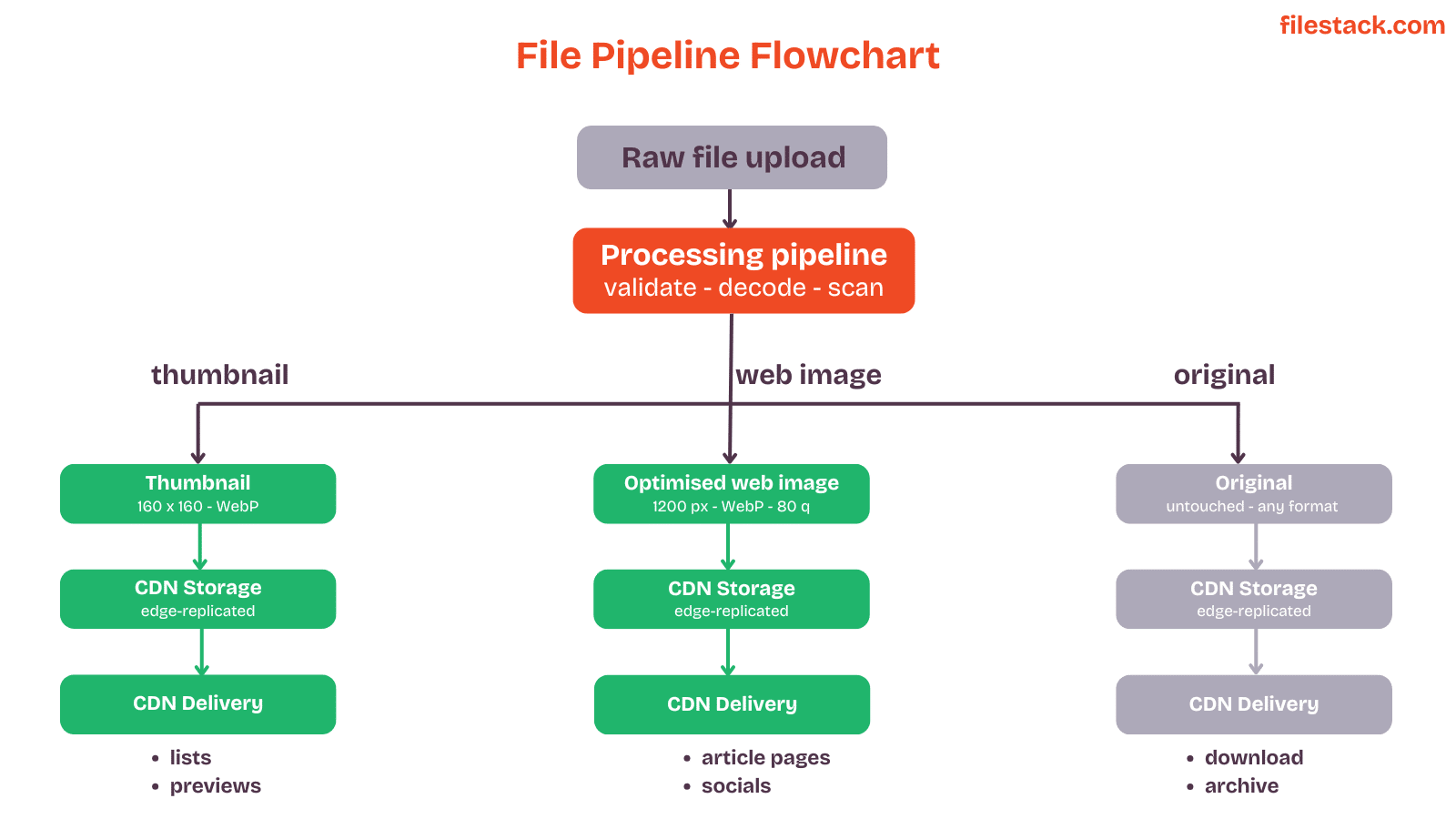
Modern upload systems can automatically process files as soon as they are uploaded instead of waiting to handle them later.
For example, you can:
- Resize and optimise images during upload to create multiple responsive versions.
- Convert videos into web-friendly formats automatically.
- Transform documents into PDFs or extract text for search and indexing.
Filestack Workflows lets you automate these processing steps without building your own file-processing infrastructure.
A production-ready upload workflow often looks something like this:
Once processing is handled, global delivery speed becomes the next challenge.
Global Performance Optimisation
Upload speed can vary based on how far the user is from the upload server. For example, someone uploading a file from Mumbai to a server in the US may experience slower uploads and higher latency.
CDN-backed upload systems solve this by sending files to the nearest server location first and then syncing them globally in the background.
Filestack automatically routes uploads through its global infrastructure, helping users get faster and more reliable upload performance from any region.
Even with strong infrastructure, monitoring uploads is still essential for maintaining reliability.
Monitoring and Error Handling
A production-ready upload system should make it easy to monitor uploads and identify problems.
You should be able to track things like:
- Upload success rates.
- Where uploads fail, such as validation, network issues, or server-side processing.
- Whether failures are happening more often in certain regions or time periods.
Good error handling should also include:
- Automatic retries for temporary failures.
- Proper logging for debugging issues.
- Clear error messages that help users understand what went wrong, like “File size exceeds 10MB” instead of a generic “Upload failed” message.
Despite modern tools and APIs, developers still run into a few common upload mistakes.
Common Pitfalls When You Upload a File Online
Here are some of the most common mistakes developers make when building file upload systems:
- Sending every upload through your backend: This approach may work for small applications, but it becomes difficult to scale. Your server can become a bottleneck, bandwidth costs increase, and handling large files becomes less reliable. Direct-to-cloud uploads are usually a better long-term solution.
- Ignoring unstable networks: Uploads that work well on fast Wi-Fi may fail on slower mobile networks or weak connections. Test uploads under different network conditions and use resumable uploads to prevent users from restarting large uploads from the beginning.
- Skipping server-side validation: Client-side validation improves user experience, but it should never be your only security check. Users can bypass client-side rules, so the server must always verify file types, sizes, and content after upload.
- Providing poor upload feedback: If users don’t see upload progress, they may think the upload is stuck or broken. Always show a progress indicator, and if possible, display estimated time remaining and give users the option to cancel the upload.
- Not preparing for large files: If your app may handle videos, large images, documents, or archives, it’s important to support resumable uploads from the beginning. Adding support later can be much more difficult and time-consuming.
To avoid these issues, it helps to follow a few proven best practices across every upload workflow.
Best Practices Across All Upload Methods
Here are some best practices to help create faster, more secure, and more reliable file upload experiences across browsers, mobile apps, and APIs.
- Use direct-to-cloud uploads to reduce server load and bandwidth usage.
- Use chunked or resumable uploads for files larger than around 5MB.
- Validate files on the client for better UX and on the server for security.
- Show upload progress, allow cancellation, and display clear error messages.
- Compress or resize files before uploading when needed.
- Use short-lived authentication tokens instead of exposing API keys in the client.
- Serve uploaded files through a CDN for faster delivery and better performance.
At this point, it’s clear that reliable uploads depend on much more than simply sending a file to a server.

Conclusion
Uploading a file online may look simple, but creating a fast, secure, and reliable upload system involves much more behind the scenes.
Modern applications need features like direct-to-cloud uploads, resumable transfers, validation, and real-time processing to handle files smoothly across browsers, mobile apps, and APIs.
By following the best practices in this guide, you can build upload experiences that are scalable, user-friendly, and secure. Tools like Filestack File Upload API make this easier with ready-to-use SDKs, upload infrastructure, and built-in file processing features.
Ready to build faster? Explore the Filestack File Upload API and add production-ready uploads to your app without starting from scratch.
If you still have questions, here are some quick answers to common questions about uploading files online across browsers, mobile apps, and APIs.
Frequently Asked Questions
How can I upload a file online from a browser?
The easiest way to upload a file is by using an HTML file input element. In modern apps, files are usually uploaded directly to cloud storage using a secure token generated by the backend. This makes uploads faster, reduces server load, and works better for large files.
What is the best way to upload files from a mobile app?
Use resumable and chunked uploads so files can continue uploading even if the internet connection drops. Compress files before uploading and use background uploads for large files. Never store API keys inside the app; use short-lived tokens generated by your backend instead.
How do API-based file uploads work?
The client first asks the backend for secure upload credentials. The backend creates a short-lived token or signed URL using the API key and sends it back to the client. The client then uploads the file directly to storage, and the storage service returns a file URL or file handle that can be saved for later use.
What are direct-to-cloud uploads?
Direct-to-cloud uploads send files directly from the user’s device to cloud storage without passing through your backend server. Your backend only creates secure upload credentials and handles the upload result afterwards. This approach reduces server load, lowers bandwidth costs, and improves performance for large file uploads.
How can I upload large files reliably?
Split the file into smaller chunks and upload each part separately. If the upload fails, only the failed chunk is uploaded again instead of restarting the entire file upload. Filestack handles this automatically for large file uploads.
What security measures are needed for file uploads?
Use HTTPS for all file transfers to keep uploads secure. Always validate file types and content on the server instead of trusting client-side checks. Use short-lived tokens, restrict file access to authorised users, and scan uploaded files for malware when needed.
Should I upload files through my backend or directly to storage?
Direct-to-storage uploads are usually the best choice for user uploads because they are faster, more scalable, and reduce server costs. Send files through your backend only if you need to inspect, process, or validate them before storing them.
How do resumable uploads improve reliability?
Resumable uploads split a file into smaller chunks and upload each part separately. If the connection fails, only the failed chunk is uploaded again instead of restarting the whole upload. This makes large file uploads much more reliable, especially on unstable mobile networks.

Shefali Jangid is a web developer, technical writer, and content creator with a love for building intuitive tools and resources for developers.
She writes about web development, shares practical coding tips on her blog shefali.dev, and creates projects that make developers’ lives easier.
Read More →