

EdTech platforms deal with a constant flow of student submissions. And when students upload several files at once, things can get messy fast.
For developers, the real struggle is batch handling. One slow file, an unstable network, or a random upload error can disrupt the whole process. A simple “upload file on website” setup just isn’t enough when hundreds of students are submitting work at the same time.
This is why a reliable multiple file upload workflow has become essential. EdTech teams need something fast, predictable, and able to handle whatever students throw at it.
Key takeaways
- Multiple file upload workflows are essential for modern EdTech platforms, especially when students submit mixed file types.
- Batch handling becomes challenging during deadlines due to slow uploads, network instability, and file errors.
- A good upload system needs clear progress bars, drag-and-drop support, auto-retry, and strong security.
- Filestack simplifies complex workflows with parallel uploads, virus detection, file transformations, and a user-friendly picker.
- Using Filestack helps developers build a faster, safer, and more scalable submission experience for students and teachers.
Why EdTech platforms need a reliable multi-file upload feature
EdTech tools handle a wide range of student work. A single assignment may include PDFs, DOCX files, JPEG images, ZIP project folders, or even audio and video recordings. This variety makes a multiple file upload workflow essential for modern classroom platforms.
Submission traffic also spikes during deadlines. Hundreds of students may try to upload assignments online at the same time. Without a reliable system, uploads fail, queues build up, and teachers lose valuable grading time.
Security and reliability matter too. Student-generated files can contain errors or even harmful content. A strong file upload API helps ensure safe, fast, and predictable uploads, even when students submit large or mixed files. This creates a smoother experience for everyone using the LMS.
What are the common challenges developers face with multiple file uploads?
Managing a multiple file upload system in EdTech looks straightforward, but real student behavior tells a different story. Once students start uploading many files at once—often at the last minute—developers run into issues that slow down the entire workflow. Most of these problems come back to one thing: batch handling.
Here are the most common challenges:
- Slow uploads or timeouts: Large or mixed file sizes can cause long waits, failed uploads, and constant retries.
- Network instability: Weak or unstable connections break big submissions halfway, resulting in partial or corrupted files.
- Unclear progress indicators: Without clear per-file and batch progress, students assume the upload is stuck and refresh the page.
- Multiple file failures in one batch: One problematic file can disrupt the entire submission group, especially without proper error handling.
- Front-end friction: Poor drag-and-drop behavior, confusing file selection, or outdated UI make the process harder for students.
- Server overload during peak hours: Hundreds of simultaneous submissions can overwhelm the system, slowing down or halting uploads.
- Security risks from student-generated files: Files may contain viruses or unsafe content, requiring strong scanning and validation.
These issues build up fast. That’s why many EdTech teams look for smarter ways to make batch file upload more predictable, scalable, and user-friendly.
What a good multiple file upload system should include
When students upload several files at once, the experience needs to be simple and predictable. A good multiple file upload system should remove friction for students while giving developers the control they need. Here are the essentials to make that happen:
- Drag-and-drop + “Select multiple files”: Students want a quick, familiar way to upload their work. Both options should feel smooth and responsive.
- Clear progress bars (per file + full batch): Transparent progress helps reduce panic and prevents page refreshes. Students know exactly what’s happening with every file.
- Auto-retry and background uploads: Network hiccups happen. Automatic recovery keeps large submissions from failing mid-upload.
- Secure virus checking: Student files can come from any device. Built-in scanning protects teachers and the LMS from unsafe uploads.
- Intelligent file handling: Features like compression and conversion help standardize submissions. This makes grading easier and reduces storage strain.
- Useful metadata for teachers: Timestamps, file type labels, and student identifiers give educators quick context during grading.
- Accessibility and mobile support: Many students upload files from phones or tablets. The upload flow should work smoothly across all screen sizes and assistive tools.
When these elements come together, the entire submission process feels reliable—for both students and developers building EdTech platforms.
Filestack’s multi-file upload capabilities
Filestack gives EdTech teams a strong foundation for multiple file upload workflows. Everything is designed to handle real student behavior—mixed file types, unstable networks, last-minute rushes, and high-traffic deadlines. Here’s a closer look at the features that matter most for LMS platforms.
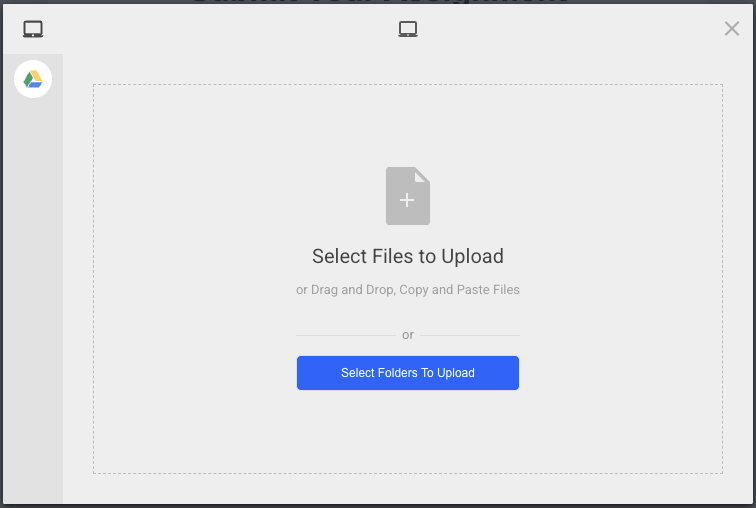
Drag-and-drop file picker
Filestack’s file picker feels familiar and simple for students. They can drag files directly into the window, and the UI guides them through the process. This reduces confusion and reduces the number of failed submissions.
Opening the Filestack file picker
You should include the Filestack JavaScript SDK UMD module in your code to integrate the Filestack file picker with your web application.
<script src="//static.filestackapi.com/filestack-js/4.x.x/filestack.min.js"></script>The code below will open the default file picker.
const client = filestack.init(YOUR_API_KEY); // Replace the placeholder text with your Filestack API Key
client.picker().open();
Select multiple files at once
Students often upload PDFs, images, videos, and ZIPs together. Filestack supports this natively, so they don’t have to upload files one by one. This creates a smoother experience for assignment submissions.
Here is an example in JavaScript:
client.picker({
    maxFiles: 10,
    fromSources: ["local_file_system", "googledrive", "dropbox"],
    accept: [
      ".pdf",
      ".docx",
      ".png",
      ".jpg",
      ".jpeg",
      ".zip",
      "video/*"
    ]
    }).open();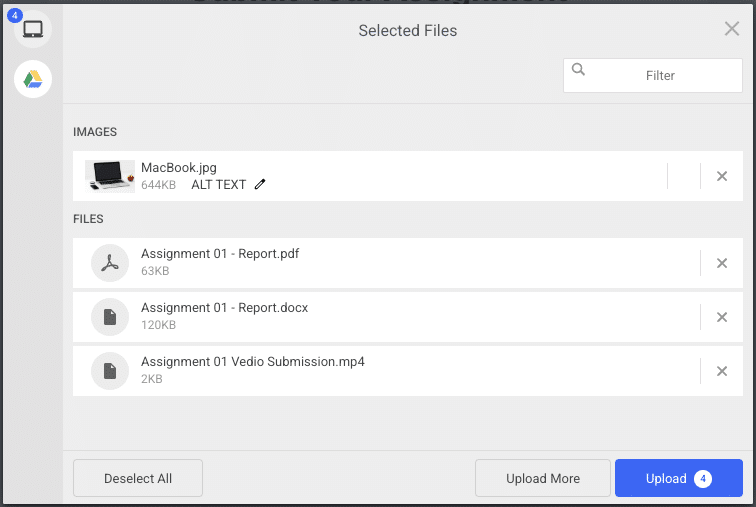
Parallel uploads
Filestack uploads each file simultaneously, not in a queue. This speeds up large submissions and keeps the workflow predictable—even during peak submission hours.
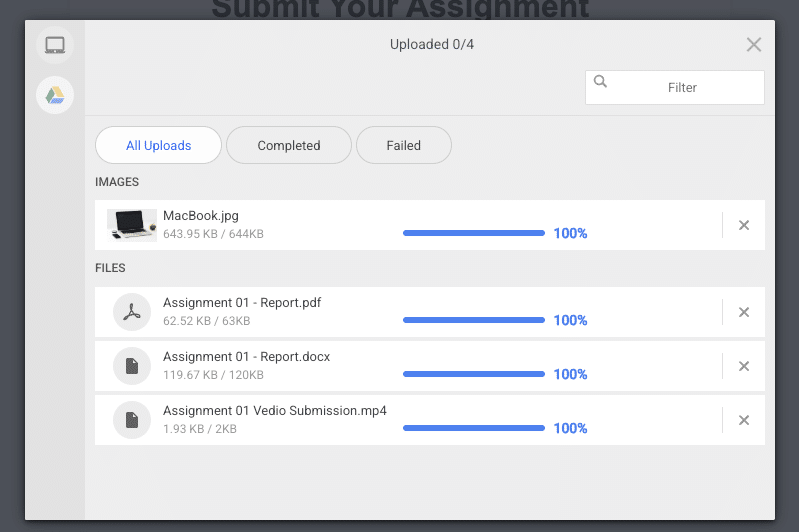
Auto-retry for unstable networks
If a student’s Wi-Fi drops for a moment, Filestack automatically retries the upload. This prevents incomplete submissions and removes the frustration of having to restart everything.
99.99% upload reliability
The infrastructure is built for scale. Even when an entire class uploads assignments at once, uploads stay stable. This helps LMS teams avoid server overload and late-night support tickets.
Built-in security
Student files can come from any device, and Filestack adds a layer of safety. Virus detection scans files before they reach your system. Policy signatures ensure only allowed files and sizes make it through.
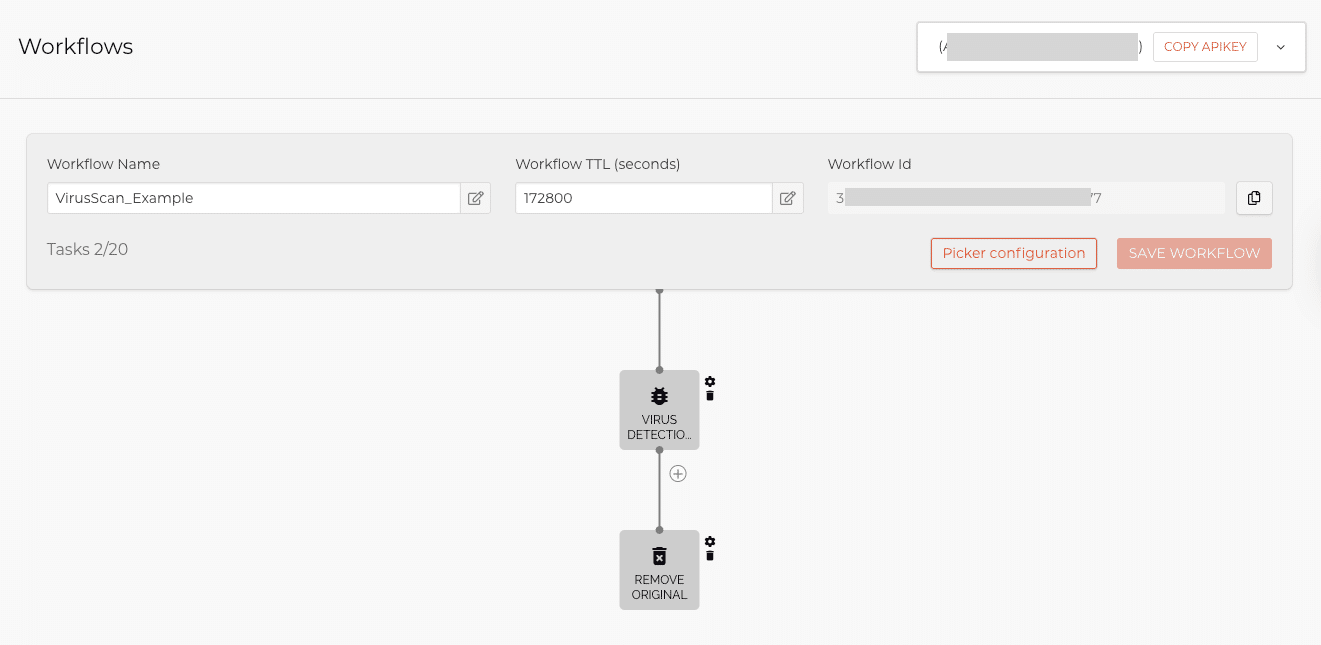
The following example shows how you can add the virus detection workflow to your code:
client.picker({

    // Add Filestack virus detection workflow
    storeTo: {
          workflows: ['YOUR_WORKFLOW_ID']  // Replace the placeholder text with your actual workflow ID
        },
    maxFiles: 10,
Powerful file transformations
Developers can convert images, compress large files, or transform documents into standardized formats. This helps teachers receive clean, consistent submissions that are easier to review.
Here’s an example of a Filestack transformation URL using the compress task:
https://cdn.filestackcontent.com/compress/${handle}Learn more about Filestack transformations.
Custom upload restrictions
You can define exactly what students are allowed to upload. Limit file sizes, restrict certain file types, or cap the number of files per submission. This keeps your system stable and prevents misuse.
Here is an example:
client.picker({
    maxFiles: 10,
    fromSources: ["local_file_system", "googledrive", "dropbox"],
    accept: [
      ".pdf",
      ".docx",
      ".png",
      ".jpg",
      ".jpeg",
      ".zip",
      "video/*"
    ],

    onFileSelected: file => {
      if (file.size > 50 * 1024 * 1024) { // 50MB
        alert("One of the files is too large (max 50MB).");
        return false;
      }
      return file;
    },

  }).open();
Encrypted, CDN-backed delivery
Every uploaded file is stored securely and delivered through a global CDN. Students and teachers get fast download speeds, reliable access, and end-to-end encryption.
With these capabilities, Filestack removes the heavy lifting from batch file upload workflows. Developers spend less time solving upload problems and more time improving the LMS experience.
You can learn more in the Filstack documentation.
Get the complete example of an LMS Assignment Submission Page from this GitHub repository.
Conclusion
Building a reliable multiple file upload workflow for student submissions isn’t easy. EdTech platforms deal with unpredictable file sizes, unstable networks, and high-traffic deadlines. These challenges make batch handling complex and time-consuming for developers.
Filestack removes this friction. Its file picker, security features, transformations, and CDN delivery give teams a smooth, scalable foundation for handling student work. Developers can focus on improving the LMS experience instead of troubleshooting failed uploads.
If your platform needs faster, safer, and more predictable file submissions, Filestack provides the tools to make it happen.
Build a reliable multiple file upload system for your LMS with Filestack. Start your free trial today.
FAQs
How do I upload multiple files at once?
You can upload multiple files at once by using a file picker or an upload tool that supports batch selection. Modern APIs like Filestack let users drag and drop several files, upload them in parallel, and track progress for each file.
How to allow multiple file upload in HTML?
In HTML, you can enable multiple uploads by adding the multiple attribute to an <input type="file"> element:
<input type="file" multiple>This lets users pick more than one file at the same time.
How does a file upload work?
A file upload sends a file from the user’s device to a server or cloud storage. The browser packages the file, sends it through an API or form request, and the server stores it or processes it. Upload services like Filestack also handle retries, validation, and security behind the scenes.


Shamal is a seasoned Software Consultant, Digital Marketing & SEO Strategist, and educator with extensive hands-on experience in the latest web technologies and development. He is also an accomplished blog orchestrator, author, and editor. Shamal holds an MBA from London Metropolitan University, a Graduate Diploma in IT from the British Computer Society, and a professional certification from the Australian Computer Society.
Read More →