Your marketplace’s listing page opens the File Picker, and your API key sits in the page source next to it. Anyone who views the source can copy the key into their own page and upload to your app. Knowing how to secure file uploads in that setup isn’t about hiding the key. The key stays public, and it does nothing without a permission only your server can issue.
That permission is a signed policy: a short-lived, scoped statement your server signs for one signed-in user. Two Filestack features do the work. Application security makes every upload carry a signed policy, and the File Picker’s security option sends that policy with each file. We built a small Node.js endpoint that signs a five-minute policy per user, and a page that fetches it before it opens the picker. Signing is one of several secure file upload controls, and it’s the one that decides who can upload at all.

Why an API Key Alone Isn’t Enough
The API key names your application. It isn’t a secret, and it was never meant to be one. Until you turn on security, uploads and file delivery accept any request that carries the key. A signature on the request is ignored. Once security is on, every upload and every delivery needs a policy signed with your app secret. That’s the control that closes the unrestricted file upload vulnerability.
There are other ways to get the same control. You can proxy every upload through your own server, which puts the bandwidth and the timeouts on you. You can issue presigned URLs from your own S3 bucket, which you build, scope and expire yourself. A signed policy keeps the upload going straight from the browser to Filestack, while your server decides who may upload, what and for how long. It’s also the simplest answer to how to secure API file uploads that come from a browser you don’t control.
How Signed Policies Work
A policy is a JSON object, encoded as URL-safe Base64 and signed with HMAC-SHA256 using your app secret. The browser sends the encoded policy and the signature along with the upload. Filestack recomputes the signature from the policy and its copy of the secret, then compares the two. If they don’t match, or the expiry has passed, the request is rejected. If they match, Filestack checks the request against the policy’s limits.
These are the fields an upload policy uses:
| Field | What it limits | Suggested value |
|---|---|---|
expiry |
When the policy stops working, as a Unix timestamp. The only required field | Now plus 300 seconds |
call |
Which actions are allowed. Leave it out and every call except exif is allowed |
['pick', 'store'] |
path |
Where files can be stored, as a regular expression. Applies to uploads to your own S3, GCS or Azure container | /users/{userId}/ |
maxSize |
The biggest file allowed, in bytes, enforced by the API | 10485760 (10 MB) |
handle |
One specific file | Only for reading or removing a single file |
pick allows the upload, and store allows saving it to the storage location the upload names, including your own bucket. The full list of calls and keys, including minSize, container and url, is in our security policy docs.
How to Secure File Uploads in Four Steps
You need Node.js 20.6 or later, which reads .env files with --env-file, and a Filestack app. If you don’t have one yet, create a free account.
Step 1. Turn On Security in the Developer Portal
In the Developer Portal, open your app, then Configuration, select the Security tab and turn on Use Security under Policy & Signature. The app secret that signs policies is on the same card. Copy it into a .env file next to your server code:
FILESTACK_APP_SECRET=YOUR_APP_SECRET
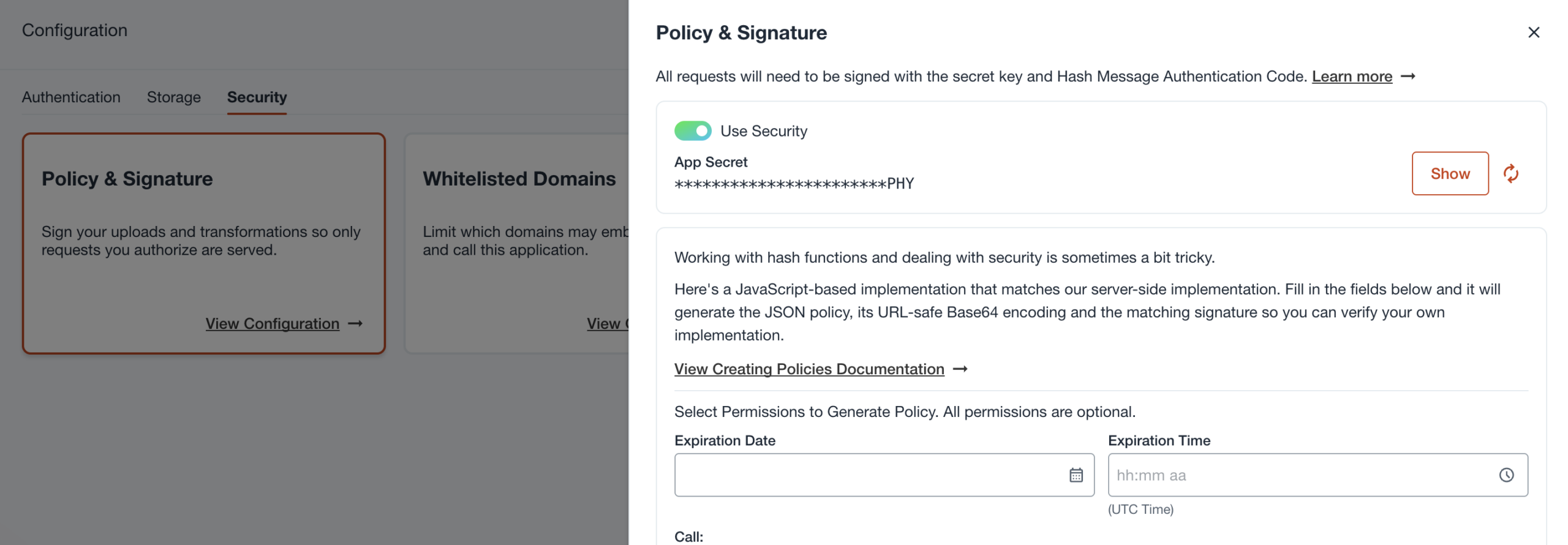
The app secret stays on your server. Anything shipped to the browser, including environment variables with a VITE_ or NEXT_PUBLIC_ prefix, can be read by anyone who opens the page.
With security on, file delivery needs a signature too, so plain links to existing files stop opening. Sign your delivery URLs with a read policy, shown in the questions at the end, so those links keep working.
Step 2. Sign the Policy on Your Server (Node.js)
Install Express in a new project:
npm init -y
npm install express
server.mjs serves the upload page and signs a fresh policy each time a signed-in user asks for one:
// server.mjs: signs a short-lived upload policy for the signed-in user
import express from 'express';
import { createHmac } from 'node:crypto';

const { FILESTACK_APP_SECRET, STORAGE_LOCATION, PORT = '3000' } = process.env;
if (!FILESTACK_APP_SECRET) throw new Error('Set FILESTACK_APP_SECRET in .env');

const app = express();
app.use(express.static('public'));

// Local testing only. In your app, your auth middleware sets req.user.
app.use((req, res, next) => {
  req.user = { id: 'demo-user' };
  next();
});

// URL-safe Base64 with the = padding kept, then HMAC-SHA256 in hex
function sign(policy) {
  const encoded = Buffer.from(JSON.stringify(policy))
    .toString('base64')
    .replace(/\+/g, '-')
    .replace(/\//g, '_');
  const signature = createHmac('sha256', FILESTACK_APP_SECRET)
    .update(encoded)
    .digest('hex');
  return { policy: encoded, signature };
}

app.get('/get-filestack-credentials', (req, res) => {
  const userId = req.user?.id;
  if (!userId) return res.status(401).json({ error: 'Sign in to upload' });

  // Minutes, not months, and only the calls this client makes.
  const policy = {
    expiry: Math.floor(Date.now() / 1000) + 300,
    call: ['pick', 'store'],
    maxSize: 10 * 1024 * 1024,
  };

  // path applies when uploads go to your own S3, GCS or Azure container
  let storeTo;
  if (STORAGE_LOCATION) {
    policy.path = `/users/${userId}/`;
    storeTo = { location: STORAGE_LOCATION, path: policy.path };
  }

  res.set('Cache-Control', 'no-store');
  res.json({ ...sign(policy), storeTo });
});

app.listen(PORT, () => console.log(`Listening on http://localhost:${PORT}`));
Line by line, the endpoint:
- Refuses anonymous callers. This is where upload authentication happens. The stand-in middleware sets a demo user so you can run the file. Replace it with your own session check.
- Sets
expiryfive minutes ahead. A policy someone copies out of the page stops working before it’s worth much. - Allows only
pickandstore. The client can upload and nothing else. It can’t read, overwrite or delete other files. - Caps
maxSizeat 10 MB. The API enforces this, so an edited page can’t raise it. - Adds
pathper user when you store to your own bucket. SetSTORAGE_LOCATIONtos3,gcsorazureand every user’s uploads stay under their own prefix. The path is a regular expression, so escape special characters if your user IDs contain any. - Keeps the
=padding on the encoded policy and signs that exact string. - Sends
Cache-Control: no-storeso no browser or proxy reuses an old policy.
Start the server and ask it for a policy:
node --env-file=.env server.mjs
curl -s http://localhost:3000/get-filestack-credentials
The server prints Listening on http://localhost:3000, and the endpoint answers with a policy and its signature:
{"policy":"eyJleHBpcnkiOjE3OTQyMDI0OTYsImNhbGwiOlsicGljayIsInN0b3JlIl0sIm1heFNpemUiOjEwNDg1NzYwfQ==","signature":"9547df4cdf8ad33e970577e3cff07070aa6d7112740d9f384432ddb7aa4bae8d"}
The policy decodes to {"expiry":1794202496,"call":["pick","store"],"maxSize":10485760}. Your expiry and signature differ, because both depend on the time and your secret. The server can now issue policies, and nothing in the browser uses them yet.
Step 3. Fetch the Policy and Open the Picker
public/index.html loads the picker from our CDN and gives it a container:
<!doctype html>
<html lang="en">
<head>
  <meta charset="utf-8">
  <title>Signed uploads</title>
  <script src="https://static.filestackapi.com/filestack-js/4.x.x/filestack.min.js"></script>
  <style>#picker { height: 100vh }</style>
</head>
<body>
  <div id="picker"></div>
  <script src="app.js"></script>
</body>
</html>
public/app.js fetches the policy first, then creates the client with it, so the picker never opens without one:
async function getFilestackCredentials() {
  const response = await fetch("/get-filestack-credentials");
  if (!response.ok) throw new Error(`Policy request failed with ${response.status}`);
  return response.json();
}

async function initFilePicker() {
  const credentials = await getFilestackCredentials();

  const clientOptions = {
    security: {
      policy: credentials.policy,
      signature: credentials.signature
    }
  };
  const apiKey = "YOUR_API_KEY";
  const client = filestack.init(apiKey, clientOptions);
  let pickerOptions = {
    displayMode: "inline",
    container: "#picker",
    accept: ["image/*", "application/pdf"],
    ...(credentials.storeTo && { storeTo: credentials.storeTo }),
    onUploadDone: (result) => console.log("Uploaded", result.filesUploaded),
    onFileUploadFailed: (file, error) => console.error("Upload failed", file.filename, error)
  };
  const picker = client.picker(pickerOptions).open();
}

initFilePicker();
Replace YOUR_API_KEY with the key from the Developer Portal, then open http://localhost:3000. The picker renders inline, and every file it uploads carries the policy and signature. onUploadDone logs the uploaded files with their handles, and onFileUploadFailed logs each rejected file with the error.
To restrict uploads to file types and sizes, the two options split the work. accept filters file types in the picker, in the browser. maxSize in the policy is enforced by the API, whatever the browser sends. The same frontend runs live in our File Picker security policy example.
Step 4. Test That It Blocks What It Should
An upload succeeds whether the policy is tight or loose, so check each limit once on purpose. Change one value, restart the server, reload the page and upload:
- Expiry. Set the expiry to
+ 5, reload, wait ten seconds and upload. Filestack rejects the expired policy, andonFileUploadFailedlogs the file with the error. - Call list. Change
callto['read']and upload. The policy no longer allows uploading, so the upload is rejected. - Size. Restore the policy and upload a file over 10 MB. The API refuses it. The picker has no
maxSizeof its own here, so the refusal comes from the policy.
If any of the three uploads goes through, check that Use Security is on and that the picker was created with clientOptions.security. Then restore the working values.
Choosing Policy Values
- Set expiry in minutes, not days. Five minutes covers a normal upload. A long session fetches a new policy rather than holding an old one.
- Give each client type its own call list. An upload form needs
pickandstore. A gallery that shows files needsread. Neither needsremove. - Give each user a path. With your own bucket,
/users/{userId}/keeps one user’s policy out of another user’s files. - Set maxSize per form. An avatar field and a contract upload don’t need the same limit.
- Issue a fresh policy per session. Sign it when the user opens the uploader, never at build time.
Policies Are One Layer
A policy settles who can upload, what and for how long, which is the first part of how to secure file uploads. It doesn’t look inside the file, so type validation and malware scanning still run on what arrives, and private files are served through signed URLs. Each of those controls has its place in our file upload security best practices checklist. For the scanning step, virus detection checks each upload before your app uses it.
FAQ
Where should I generate the policy?
Always on your server. The app secret must never reach the browser, and the endpoint that signs is also where you check who the user is.
How long should a policy last?
Minutes. Generate a fresh one each time the user opens the uploader. The sample fetches its policy when the page loads, so a page left open past five minutes needs a reload. In your app, call initFilePicker() from the button that opens the uploader, and a page left open all day still uploads with a policy that’s seconds old.
Do policies protect downloads too?
Yes. With security on, the same sign() function turns a read policy for one handle into a signed, expiring URL:
const handle = 'YOUR_FILE_HANDLE';
const { policy, signature } = sign({
  expiry: Math.floor(Date.now() / 1000) + 300,
  call: ['read'],
  handle,
});
const url = `https://cdn.filestackcontent.com/${handle}?policy=${encodeURIComponent(policy)}&signature=${signature}`;
The URL opens the file for five minutes and nothing else.
To run this signed upload policy setup with your own key, start from a free Filestack account. The steps above are how to secure file uploads end to end: one endpoint, one picker option and three tests.

Carl is a Product Marketing Manager at Filestack with four years of hands-on experience in React, JavaScript, Django, and Python. He bridges the gap between product and developer, translating how Filestack’s APIs and SDKs actually work into content that’s useful for the engineers building with them. His writing covers file handling workflows, upload integrations, and real-world implementation patterns, written from the perspective of someone who has built with these tools firsthand.
Read More →