

An image quality enhancer is a tool that uses AI to improve a photo’s resolution, sharpness, color, and lighting automatically, no manual editing. To enhance image quality: upload your image to an AI enhancer, let the model upscale it (typically 2x) and correct color and exposure, then export. For one-off images, desktop and online enhancers work; for websites and apps that receive many user images, an API-based enhancer like Filestack applies upscaling and enhancement to every image automatically via a URL parameter, for example, adding /upscale/ or /enhance=preset:auto/ to the image’s CDN URL.
Key Takeaways
- Image resolution is measured in pixels; images above roughly 300 PPI at output size are considered high resolution for print.
- AI enhancers improve quality on two axes at once: resolution (upscaling adds realistic detail) and appearance (color correction, exposure, noise reduction).
- Upsampling is harder than downsampling because the software must generate new pixels, which is why AI models beat classic bicubic resampling.
- Super Resolution techniques power real-world systems from medical imaging to satellite photography and are now available in consumer tools.
- Common use cases: enhancing user-generated content, preparing images for large-format print, and product photo optimization for e-commerce.
- For applications, Filestack enhances images at scale: chain
upscaleandenhancepresets (auto,vivid,beautify,fix_dark) in a CDN URL and every uploaded image is improved automatically.
What Is A High-Resolution Image?
Pixel is the smallest unit of an image that carries information. Digital images contain hundreds of pixels. The resolution of an image depends on the number of pixels in that image. PPI is a term to indicate pixels per inch of an image. If an image has more pixels per inch, it has a higher resolution. Usually, a high-resolution image has more than 300 pixels per inch.
Note that PPI only matters relative to output size: a 3000×2400 pixel image is 300 PPI at a 10×8 inch print but only 100 PPI at 30×24 inches, which is when an AI upscale becomes necessary.
Quality Enhancement of a Low-Resolution Image
Uploading high-resolution images is a pain. So, our websites often get low-quality images from users that need enhancement. Image quality enhancement is a process used in many fields. It aims to recover rich details from low-resolution images. The Filestack Image Enhancement function analyzes a photo and applies color correction and other modifications to raise the image’s general quality. To get the best results, you can choose from a variety of settings. Some of the presets are:
| Filestack preset | What it does | Best for |
|---|---|---|
upscale |
AI-upscales the image 2x while enhancing detail | Low-resolution UGC, small sources |
enhance=preset:auto |
Analyzes the photo and applies the best corrections | Default for mixed content |
enhance=preset:vivid |
Boosts color vibrancy and contrast | Product and marketing images |
enhance=preset:beautify / beautify_plus |
Skin smoothing and portrait retouching (plus = stronger) | Profile photos, portraits |
enhance=preset:fix_dark |
Brightens underexposed images | Dim indoor / evening photos |
How To Increase The Resolution Of An Image?
Increasing the resolution of an image is not the easiest task. You can even destroy the image if you try to do it in the wrong way. You have to consider the following points when increasing the resolution of an image.
A Better Way to Enlarge Images
A picture may seem hazy and unprofessional when you attempt to enlarge it too much. As you enlarge the image, pixels that make up the image start to appear separately. As a consequence, the image you see is dull and unsatisfactory. Therefore, you should consider a way to enlarge a photo without affecting the quality.
Improving Detail in Enlarged Images
As the image gets bigger, lines and colors get thick and blur. The details of the images need to be preserved in order to do proper calculations and transformations. By using sharpen tools like GIMP, you can improve the details of enlarged images.
Why Text and Fine Detail Break When Enlarging
Even if you use sharpen tools, the typography may not be 100%. That’s why you should try to use AI image enhancement tools like Filestack.
Text, logos, and line art suffer most when enlarged, because interpolation rounds their hard edges into gray halos that sharpening cannot fully repair. AI enhancers trained on text and graphics reconstruct those edges instead, which is why AI enhancement is the only reliable way to enlarge images containing typography.
Effects Of Resampling On Resolution
When you resample an image, you change its pixel dimensions, and with them, its file size. When you resize without resampling, only the print dimensions and PPI change; the pixel data and file size stay the same. You have to do it by changing the dimensions of the image. When you upsample an image, it adds data to the image, increasing the number of pixels in it. Likewise, the downsampling discards data during the process, reducing the pixel count of the image. The quality of the image suffers to some degree, whenever you add data to or withdraw from it. In most cases, removing data from an image is better than adding it. This is due to the fact that upsampling involves estimating which pixels to add. This process is more difficult than figuring out which pixels to downsample.
Effects Of Super Resolution On Image Quality
Super Resolution is the process of converting low-resolution photographs into high-resolution images. Super Resolution is one of the quickest methods to enhance lower-resolution photographs and produce a high-quality image. There are several real-world applications for this technique, such as medical imaging, surveillance and security, satellite imaging, and astronomical imaging. If we talk about the effects of super-resolution, the quality of the image may vary significantly. Even if we apply Super Resolution to two images with the same resolution, the images might have radically different appearances and levels of information.
Finally, Super Resolution has moved from costly research systems into everyday tools: it’s a one-click feature in Adobe Camera Raw, free in open-source apps like Upscayl, and available on-demand through APIs like Filestack’s upscale transformation.
Photoshop Adjustments
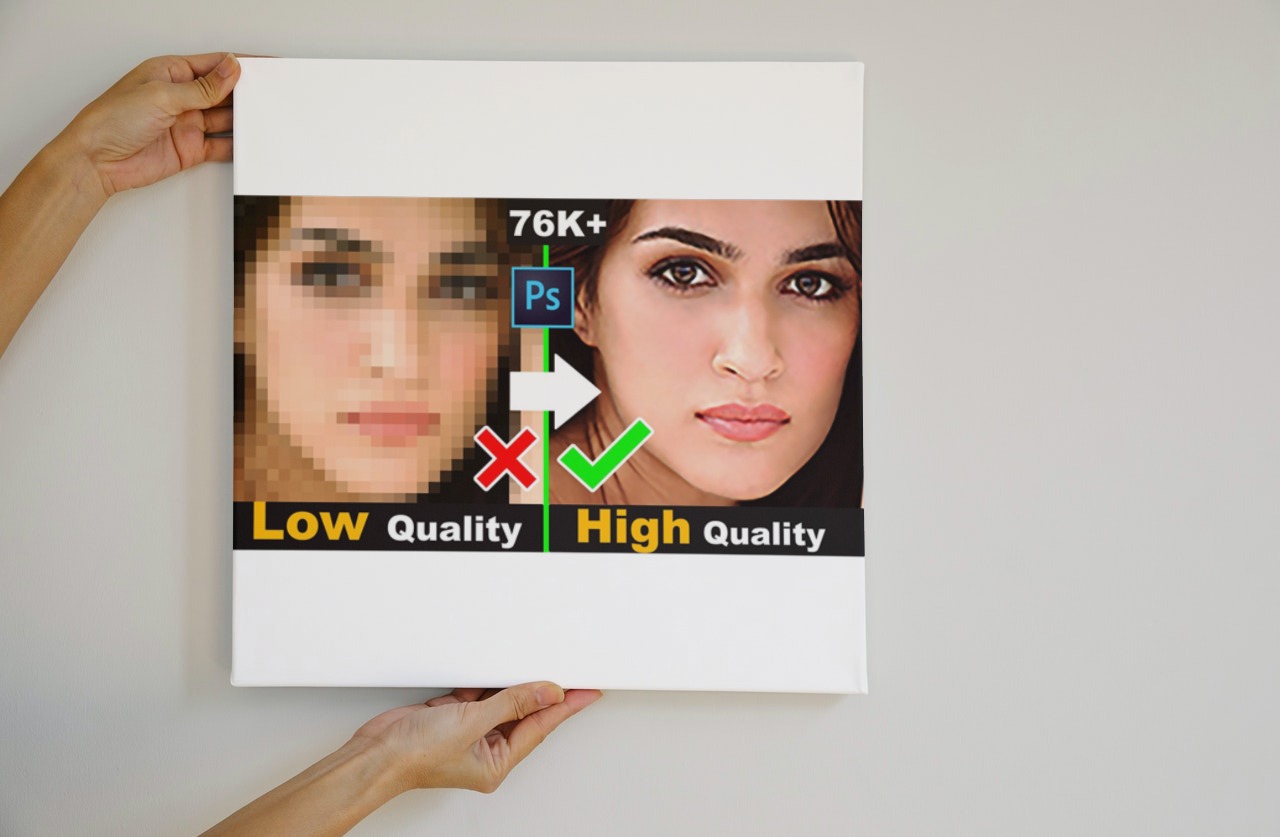
Use Photoshop’s Super Resolution feature if you want even more control over the resolution of your images. After applying Super Resolution, you might obtain the precise look you desire with some noise reduction and texture adjustments. However, you may need to significantly alter the size of your original picture or add a certain number of additional pixels. The best option in such circumstances is conventional resampling. This method may assist you in producing whatever picture sizes and resolutions you want, whether you choose to start with Super Resolution or resample.
There are two techniques you can use. The first method is to alter the size and number of pixels of a picture separately. The second method is to alter only one at a time and let Photoshop handle the rest. The two techniques are given below.
- Change resolution by adjusting pixel dimensions – Check the resample box if you have special requirements for the shape or size of your picture, such as a poster at certain print size. As a result, you may vary the number of pixels in the picture and independently change the print size and quality.
- Change print dimensions without adjusting pixel dimensions – Check to see whether you can get a high-quality print by altering the resolution or size but adjusting the pixel count alone. The other value will be changed for you automatically by Photoshop while maintaining the aspect ratio and pixel count.
Does Resizing Enhance Resolution?
When you resize an image without resampling it, it changes the size of the image without altering the data content of the image. Resizing a picture without resampling modifies its physical size without altering its pixel measurements. The picture does not have any information changed or added. When you reduce the physical size of an image, but let the pixel dimensions remain constant, the resolution rises proportionately. An image’s resolution doubles when its physical size is cut in half. It basically means the same area accommodates twice as many pixels. The resolution of an image drops in half when you double its size, because the pixels must be spaced twice as far apart to fit the image’s physical dimensions.
What Are Some Use Cases?
Image quality enhancement is useful in various situations, as shown below.
Creative Professional Idea Visualization
Some examples of professional creative ideas are posters and brochures. However, enhancing their quality will positively impact the company’s vision and mission, as well as sales.
Increased Resolution of UGC
Genuine user-generated content establishes greater trust between customer and brand. As you increase the resolution further, it will positively impact the user.
Enhance Photos For Large-Size Prints
When it comes to printing large-sized images from a small image, the image should be enhanced to the appropriate size without losing quality.
Product Photo Editing
Enhancing product photos is quite important, since it will result in building a brand, increasing sales, helping with SEO, and, more importantly, making the image more prominent.
Enhance Your Images Using AI: With Working Code
AI enhancers are web-based or downloaded programs that let you quickly edit pictures. It may be as simple as submitting your photograph and letting artificial intelligence handle the rest, since it auto improves images with AI. These technologies enhance the quality of your image without sacrificing any information, thanks to machine learning and AI. This implies that you might enhance a blurry shot to make it seem as if it was taken by a skilled photographer. Filestack has a set of In-App Image Enhancements built on deep learning technologies to improve the overall quality of pictures.
Enhancing an image with one URL. Every file uploaded through Filestack gets a CDN URL; prepend a task to transform it on the fly:
// original
https://cdn.filestackcontent.com/HANDLE

// AI upscale (2x) with enhancement
https://cdn.filestackcontent.com/upscale/HANDLE

// auto-enhance color and exposure
https://cdn.filestackcontent.com/enhance=preset:auto/HANDLE

// chain tasks: upscale, then fix dark photo, then convert
https://cdn.filestackcontent.com/upscale/enhance=preset:fix_dark/output=format:webp/HANDLE
No editor, no manual step per image; the enhancement runs on request and the result is cached on the CDN. This is what makes an API enhancer different from desktop tools: it scales to every image your users ever upload.
Tips For Increasing Image Resolution
Resolution and pixel count relates to digital images and photographs. The resolution of a picture increases with the number of pixels. First, increase the size of the image. Then check the pixel density to enhance the resolution. Although the image is bigger, it may not be as crisp as the original. You will see the difference in sharpness more clearly when the picture becomes larger. Instead of adding additional information, this method increases the image’s size and adds pixels.
Use the following tips to lessen the sharpness loss:
- Avoid A Significant Increase In Size: As every picture is unique, if you increase the dimensions by more than 30% or 40%, it will probably result in a loss of sharpness.
- Use Sharpen Tools When Available: Both GIMP and Photoshop provide tools for sharpening pictures. However, not every program includes these tools. Use sharpening tools sparingly to maintain a comparable look to the source image, since the end result might come out as unnatural.
Popular Questions and Prompts About Image Quality Enhancement
These are the highest-demand questions and prompt patterns people type into Google and AI assistants about image enhancement right now.
“How can I improve image quality?”
Run the image through an AI enhancer: it will upscale resolution, sharpen detail, correct color and exposure, and reduce noise in one pass. For a single photo, use a desktop or online enhancer; for images in an app or website, apply enhancement automatically via an API; e.g., Filestack’s enhance=preset:auto on the image URL.
“What is the best AI photo enhancer?”
It depends on the workflow: Photoshop’s Super Resolution for maximum manual control, Upscayl for a free local option, online enhancers for quick one-off jobs, and Filestack for automatic enhancement of every image an application receives. If you’re choosing for a website or product, the API option is the only one that scales.
“How do I enhance image quality without Photoshop?”
Free options: Upscayl (desktop AI upscaler), GIMP with Unsharp Mask for manual sharpening, or online AI enhancers. For developers, one Filestack URL parameter (upscale or enhance) replaces the entire manual workflow.
“Can AI really fix a blurry photo?”
Often, yes, within limits. AI enhancers reconstruct plausible detail for soft, low-resolution, or mildly blurred images, and results on faces and text are frequently dramatic. They cannot recover information that was never captured: severe motion blur or extreme crops may improve but won’t match a properly captured original.
Prompt: “Auto-enhance every user-uploaded image”
A pattern that works well with AI coding assistants: “In my app, serve every user-uploaded image through Filestack with upscale and enhance=preset:auto applied, deliver as WebP via output=format:webp, keep the original URL as fallback, and lazy-load the enhanced versions.” Naming the exact tasks and fallback behavior is the biggest quality lever.
FAQ
What does an image quality enhancer do?
It automatically improves a photo’s resolution, sharpness, color, exposure, and noise using AI models trained on millions of images, turning a low-quality input into a usable high-quality output without manual editing.
Does increasing resolution always improve quality?
No. Increasing resolution by plain resampling adds pixels without adding detail and can make an image look softer. Quality improves only when the added pixels carry real detail, which is what AI upscaling provides.
What’s the difference between upscaling and enhancing?
Upscaling increases pixel dimensions (e.g., 2x width and height). Enhancing improves appearance: color, contrast, exposure, noise, at any size. AI enhancers, and Filestack’s chained transformations, can do both in one pass.
Can I enhance images automatically on my website?
Yes. With an image API like Filestack, add transformation tasks to the image’s CDN URL (upscale, enhance=preset:auto) and every image is enhanced on delivery and cached, no per-image work and no changes to your upload flow.
Ready to get started processing your images?
With the help of Filestack‘s Processing Engine, developers can easily modify a wide variety of files, including photos, documents, and videos. Additionally, it gives information on the file content through the Filestack intelligence system. By adding parameters to the URLs, you can modify your files in real-time with Filestack or asynchronously with Workflows. You can provide your users the power to change photos by utilizing Transformation UI. All the files stored in your application are accessible through the Filestack CDN. Moreover, processing “tasks” that alter the requested resource can change the URL of any file. Finally, Filestack adaptive is the fastest way to responsive images.
Want to offer an effortless quality enhancer experience to your users? Try Filestack today!

Shanika Wickramasinghe is a software engineer by profession and a graduate in Computer Science. Her specialties are Web and Mobile Development. Shanika considers writing the best medium to learn and share her knowledge. She is passionate about everything she does, loves to travel, and enjoys nature whenever she takes a break from her busy work schedule.
Read More →