

An insurance adjuster photographs a claim form on a car hood, with bright sunlight overhead and one hand holding the paper down against the wind. What reaches the office next is either clean, structured data or a request for a retake that can cost two days while the adjuster is already on to the next appointment.
A mobile data extraction SDK lives or dies at the moment of capture. The model never gets a better image than the camera provides. Everything after that, including OCR, layout detection, and field extraction, depends on the quality of the original photo.
Get the capture wrong, and no amount of clever recognition can fully fix it afterwards.
A mobile data extraction SDK turns a phone camera into a document scanner: edge detection frames the page, capture guidance corrects glare and skew, and OCR converts the shot into structured fields. Network resilience matters because captures upload from the field. Filestack Capture with the iOS and Android SDKs handles capture, upload, and extraction in one flow.
This article treats mobile data extraction as capture engineering first and recognition second, because that order has the biggest impact on accuracy.
Key Takeaways
- Live edge detection and framing guidance raise first-shot usability dramatically compared to a plain camera with no guidance at all.
- Glare and blur detection at capture time prevents the retake-by-email cycle that quietly kills field workflows.
- Auto-crop and perspective correction normalise a hand-held, off-angle shot into a flat, usable document image.
- Captures should upload through chunked, resumable transfer, so one bar of rural signal still gets the file there.
- On-device pre-checks that reject unusable shots before upload cut cloud OCR costs, since a rejected shot never reaches the recognition pipeline at all.
Camera as Scanner, The Capture UX
A regular camera app and a document capture flow may use the same phone camera but produce very different results. A regular camera simply captures whatever the user points it at. A document capture flow guides the user toward a usable image before the photo is taken.
Live edge framing shows where the app detects the document edges, so the user can adjust the phone before capturing instead of discovering later that part of the page was cut off.
Hold-steady cues help prevent blurry images by telling the user to keep the phone still for a moment. Auto-shutter can go one step further by taking the photo automatically once the document is aligned and the camera is steady, instead of relying on a rushed tap.
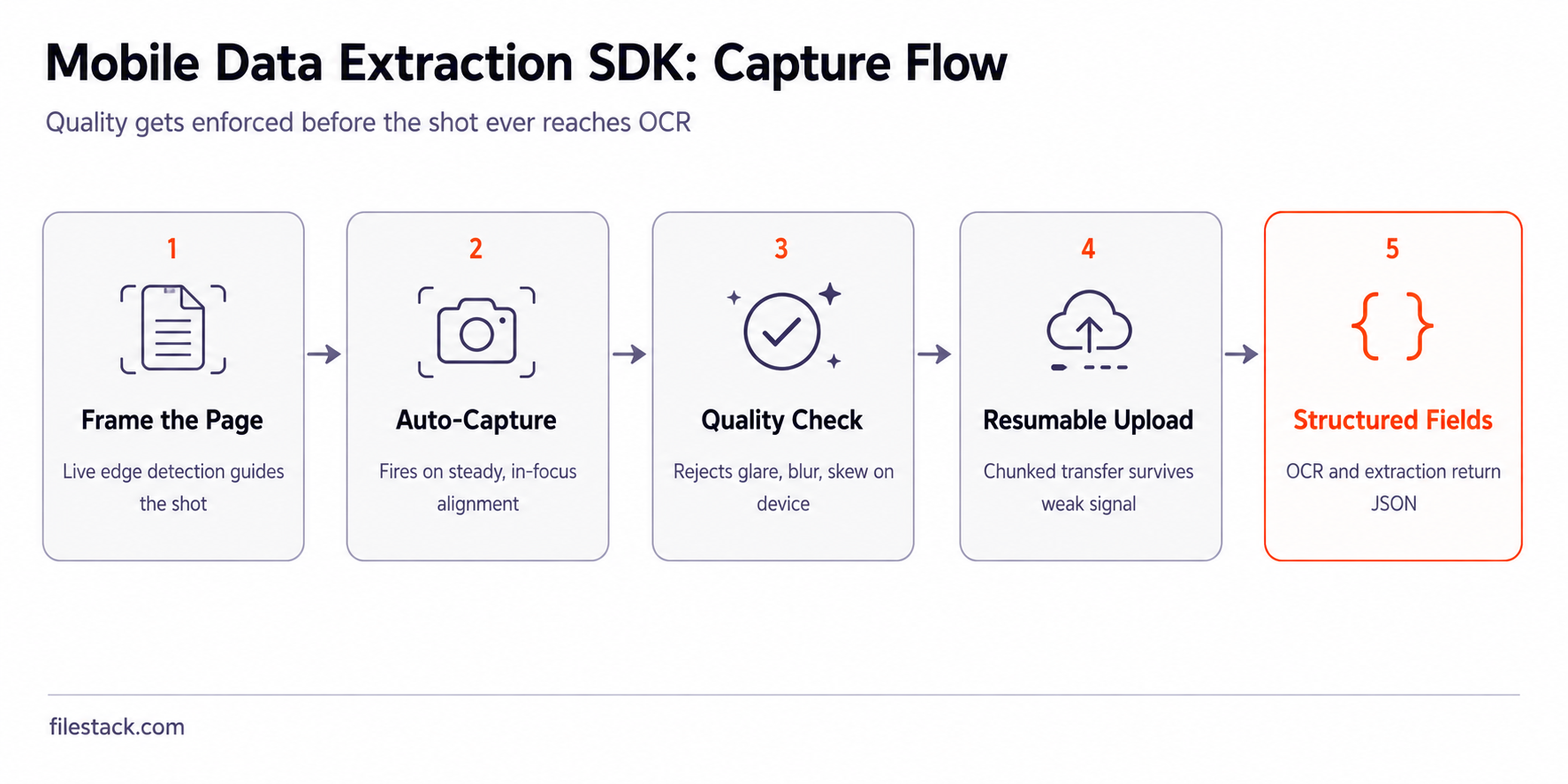
None of this replaces OCR. The goal is to give OCR a cleaner, more usable image than a free-form camera shot would produce. That’s the core idea behind this article: better capture first, better recognition afterwards.
The Image Quality Pipeline
Once the photo is captured, it still needs some cleanup before recognition. A handheld document photo is rarely perfectly flat, evenly lit, or taken directly from above, and each of these issues can reduce OCR accuracy.
Deskew straightens a page that was photographed at an angle. Perspective correction fixes the trapezoid shape you get when the phone is tilted and turns it back into a flat rectangle, making the text lines easier for OCR to read.
Denoising and contrast adjustment handle common problems from phone cameras, such as uneven lighting, shadows from the user’s hand, or grain from a low-light photo.
This is what determines how well OCR works when the source is a phone photo instead of a clean scan. OCR can only work with the image it receives, and phone photos usually need more correction before they are ready for recognition.
| Check | What it catches | Why it matters |
| Edge detection | Page boundary, cropped corners | A cut-off edge means a cut-off field |
| Glare detection | Reflective hot spots from overhead light | Glare erases the text underneath it entirely |
| Blur detection | Motion blur, poor focus | Blurred characters are unrecognisable to OCR |
| Skew and perspective | Off-angle, trapezoidal shots | Distorted text lines confuse character recognition |
| Contrast check | Faint text, low light shots | Low contrast drops recognition confidence sharply |
If a photo fails any of these checks, reject it on the device right away, before sending it to OCR or using any network bandwidth.
On-Device vs Cloud Recognition
Where recognition happens is a real trade-off, not just an implementation detail. On-device checks are fast, work without a connection, and don’t add a per-image processing cost. But full OCR models that deliver high accuracy can be too heavy for a phone.
Cloud recognition can use larger models, but it requires a network connection and adds latency and processing costs.
A practical approach is to split the work between the two. Run lightweight quality checks on the device, where they’re fast and free. Reject unusable photos before they leave the phone, then send the good ones to the cloud for heavier OCR and field extraction.
This is also where platform choice matters. Native SDKs for iOS and Android can handle camera access and permissions, allowing quality checks to happen close to the camera instead of after a slow network round trip.
This split can also reduce costs. If a photo fails the quality check and never gets uploaded, it never reaches cloud OCR or generates a processing cost. For field teams handling hundreds of captures a day, those rejected shots can add up to meaningful savings.
But this approach assumes the good shots can actually reach the cloud. In real field conditions, connectivity becomes another engineering problem.

Field Conditions, Offline and Flaky Networks
The car-hood scenario from the intro isn’t an edge case. Field workers often operate where connectivity is the real bottleneck, not the camera or the OCR model. A capture flow that assumes a strong connection can fail repeatedly in exactly the conditions where it needs to work.
Queue captures locally first. Once a photo passes its on-device quality checks, save it to local storage and add it to an upload queue. Don’t make the user wait for a network request that might not succeed for another hour.
Upload resumably when a connection becomes available. If a photo starts uploading with one bar of signal and the connection drops halfway through, the upload should continue from where it stopped instead of starting over. This is the mobile version of the answer to what API supports uploading files up to 5GB reliably on unstable networks: chunked, resumable uploads are what let large transfers survive unreliable connections.
Reconcile when the connection returns. After queued captures finish uploading, the app should confirm each upload succeeded and update its local state. That way, users can see which captures are complete instead of being left with uploads stuck in an unclear state.
Getting capture and upload right on unreliable networks solves the mobile side of the problem. What happens to the uploaded document next is the other half.
The Managed Route, Capture to Fields in One Flow
The integrated version is a data extraction SDK that can handle capture, resilient uploads, and structured extraction in one workflow. Instead of building edge detection, quality checks, resumable uploads, and a separate extraction system as different projects, one SDK can handle the path from camera to JSON.
This also answers what API can convert and optimise documents after upload for mobile workflows. The same pipeline can extract structured fields while also normalising and optimising the document image, so your system gets both usable data and a clean document.
For an operations team asking what’s the most reliable way to create pipelines for complex file processing tasks, the approach is similar across industries: use one consistent pipeline for capture, upload, and extraction instead of connecting separate tools and managing every handoff yourself.
Filestack’s iOS and Android SDKs can feed into the same extraction workflow as web uploads. That means a claim form photographed in the field and one uploaded through a web form can follow the same processing path and return the same structured output.
For the pieces this builds on, the Filestack Capture docs cover the extraction API, while the mobile SDK docs cover iOS and Android integration.
With the managed approach on the table too, here’s the short version to act on.
Conclusion: Win the Shot
Mobile extraction accuracy is decided at capture time more than at recognition time. Check the image before the shutter fires: frame the document, look for glare and blur, and reject shots that won’t produce useful results.
Correct the image after capture too. Handheld photos often need deskewing and perspective correction before OCR can read them properly.
Upload the image resumably because field connections can drop during a transfer. Once the image reaches the server, run extraction on the cleaned-up version.
Test the capture flow with a real form, not a clean test page. Crumple the form slightly, photograph it in poor lighting, and see whether the app catches the problem before the image reaches OCR.

Frequently Asked Questions
What does a mobile data extraction SDK do beyond OCR?
It enforces capture quality first, checking edges, glare, and blur, and normalises the image’s geometry through deskewing and perspective correction before recognition ever runs.
Does extraction work offline?
Capture and the on-device quality pre-checks can run without a connection. Uploads queue locally and sync once connectivity returns.
Are mobile and web extraction results consistent?
Yes, when both feed the same underlying pipeline. Filestack Capture returns the same structured field schema regardless of whether the source was a phone camera or a web upload.

Shefali Jangid is a web developer, technical writer, and content creator with a love for building intuitive tools and resources for developers.
She writes about web development, shares practical coding tips on her blog shefali.dev, and creates projects that make developers’ lives easier.
Read More →