

An operations team retypes 400 scanned invoices into a spreadsheet every month. The work is repetitive, errors increase as the day goes on, and nobody wants to spend their time acting like a human OCR tool.
A PDF data extraction SDK is useful for exactly these kinds of documents: scanned, skewed, or messy pages that are difficult to process by hand.
Data extraction isn’t just one model doing all the work. It’s a pipeline, and the OCR model is only one of the five stages.
A PDF data extraction SDK converts static or scanned PDFs into structured fields: it applies OCR to page images, detects layout elements such as tables, key-value pairs, and checkboxes, and returns machine-readable JSON. Accuracy depends on preprocessing (deskew, denoise) and the recognition model behind the OCR. Filestack Capture pairs upload with OCR-driven extraction, turning documents into data in one pipeline.
This article explains how PDF extraction actually works, where scanned and digital PDFs differ, how data is pulled from a flat page, and how to build a pipeline that knows when to trust the results and when to send them to a human for review.
Key Takeaways
- Extraction runs through five stages: ingest, preprocess, OCR, layout detection, and structured output. The OCR model is one stage, not the whole pipeline.
- Born-digital PDFs carry a text layer that can be read directly. Scanned PDFs are images, and only images need OCR.
- 300 DPI is the practical floor for reliable OCR. Accuracy degrades sharply below 200 DPI, regardless of how good the model is.
- Layout detection is what separates real extraction from plain text extraction. Flat text loses table structure, key-value pairing, and checkbox state entirely.
- Every extracted field should carry a confidence score, so low-confidence fields route to a human reviewer instead of silently entering your system wrong.
From Pixels to Fields: How Extraction Works
Extraction is a pipeline, not a single function call. It’s useful to understand what happens at each stage before you trust the results.
Ingest brings the PDF into the pipeline, whether it comes from an upload, email attachment, or document scanner. Preprocessing cleans up the page before anything reads it. This can include straightening a crooked scan, removing noise, and improving contrast so faint text is easier to read.
OCR turns the page image into text and identifies where that text appears. Layout detection goes a step further by figuring out which text belongs to a table, which text forms a label and value, and which marks are checkboxes.
Structured output then puts the extracted information into a format such as JSON with named fields, so another system can use it.
This five-stage approach gives a better answer to how to add OCR or text extraction to uploaded PDFs than simply saying “run OCR.” OCR gives you raw text. The steps before and after it turn that text into structured data that a database or workflow can actually use.
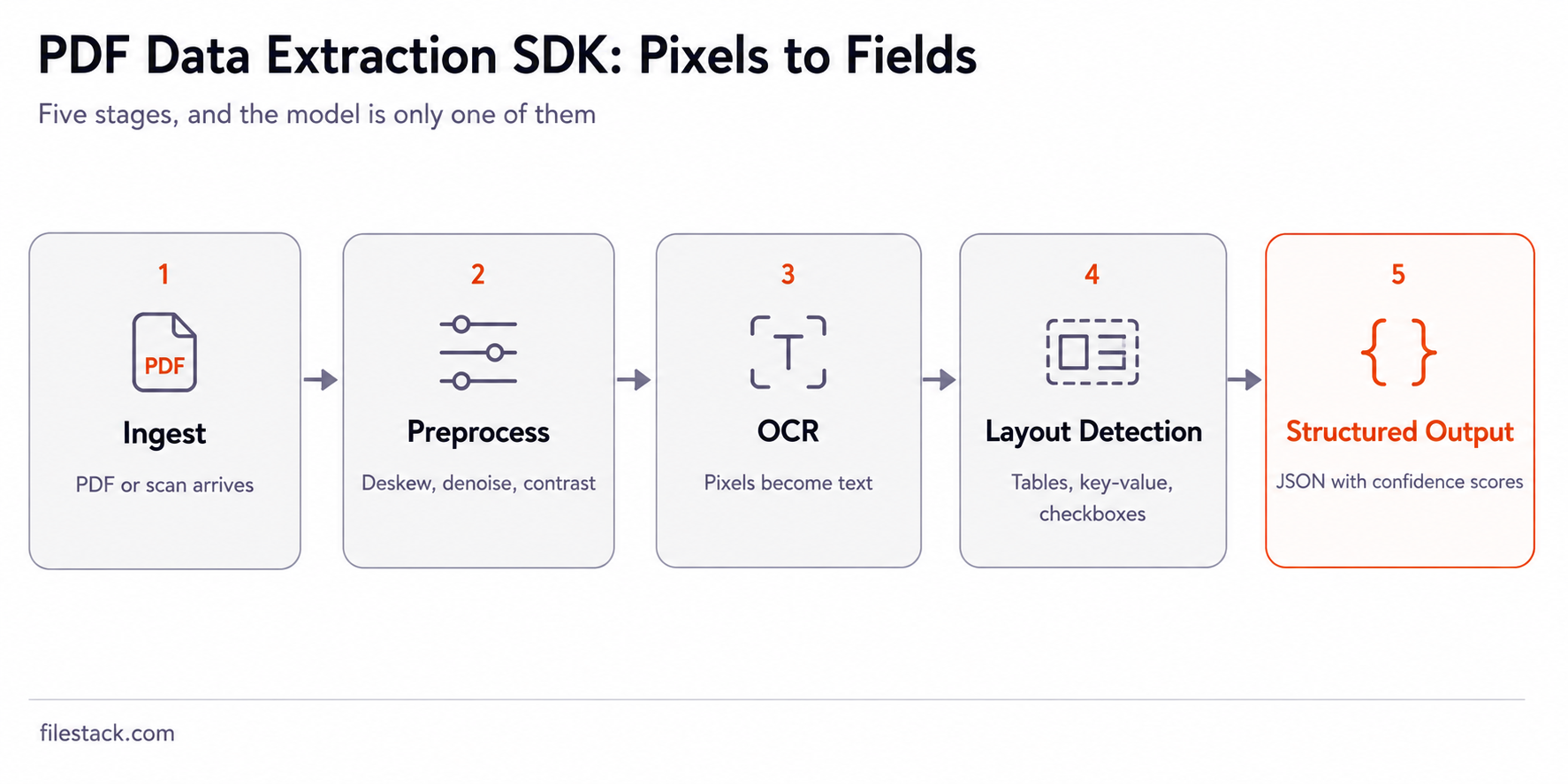
Each stage can fail on its own. Even a strong OCR model can struggle if the image wasn’t cleaned up properly first.
Before we look at how structure is extracted, it’s important to separate the two main types of PDFs. They need very different approaches.
Scanned vs Born-Digital PDFs
Not every PDF needs OCR, and running OCR when it isn’t needed just adds extra work. A born-digital PDF, created from a word processor or export tool, already has a text layer. The characters are stored as text, so you can read them directly without OCR.
A scanned PDF is different. It’s basically an image of a page inside a PDF file. Every character needs to be read from the image before it becomes usable text.
Checking for a text layer first is quick and can save processing time. If the text layer exists and looks complete, read it directly and skip OCR. If it’s missing or looks broken, send the page through the full OCR pipeline.
For PDFs that do need OCR, scan quality has a major effect on accuracy. Around 300 DPI is a good target for reliable OCR. Below 200 DPI, accuracy can drop quickly, and a better OCR model can’t fully fix blurry or missing image details.
Crooked pages and heavy compression can make things worse too. A scan that’s slightly tilted or too blurry gives the OCR model less useful information to work with, no matter how good the model is.
| Factor | Effect on accuracy | Practical fix |
| Scan resolution | Sharp drop below 200 DPI; 300 DPI is the practical floor | Rescan at 300 DPI or higher where possible |
| Page skew | Misaligned text confuses character and line detection | Deskew in preprocessing before OCR runs |
| Contrast and noise | Faint or noisy text reduces character recognition confidence | Denoise and boost contrast in preprocessing |
| Compression artifacts | Blurred edges blend adjacent characters | Avoid aggressive JPEG compression on scanned pages |
| Handwriting | Far lower accuracy than printed text, model-dependent | Route handwritten fields to manual review by default |
Preprocessing, such as deskewing, removing noise, and improving contrast, can often improve OCR accuracy more than switching to a different OCR model. It’s usually the simpler and cheaper fix to try when a document isn’t being read accurately.
Getting clean text from a PDF is only half the job. You also need to understand which pieces of text belong together. That’s where plain text extraction starts to fall short.

Structure Detection, Tables and Key-Value Pairs
Plain text extraction turns a page into a stream of characters, but an invoice is more than that. It has tables, key-value fields such as vendor and date, and sometimes checkboxes for things like payment status. With plain extraction, that structure can get lost. Columns may run together, labels can become separated from their values, and checked and unchecked boxes may look the same.
Layout detection keeps this structure intact. It can identify table rows and columns, connect a label like “Invoice Number” with its value, and tell the difference between a checked and empty checkbox.
This also connects to a broader question: what API can convert and optimise documents after upload? Extraction is often just one step. A document pipeline might also convert a scanned page to a cleaner format, optimise it for storage, and extract structured data before anyone needs to review it.
The output from a well-built extraction pipeline might look like this for a simple invoice:
{

  "document_type": "invoice",

  "fields": {

    "invoice_number": { "value": "INV-4482", "confidence": 0.98 },

    "invoice_date": { "value": "2026-07-14", "confidence": 0.95 },

    "vendor_name": { "value": "Acme Supply Co.", "confidence": 0.91 },

    "total_due": { "value": "1,240.50", "confidence": 0.97 }

  },

  "line_items": [

    { "description": "Widget A", "quantity": 12, "unit_price": 45.00, "confidence": 0.93 },

    { "description": "Widget B", "quantity": 5, "unit_price": 112.10, "confidence": 0.68 }

  ],

  "checkboxes": {

    "paid": { "checked": false, "confidence": 0.89 }

  }

}
Notice that every field has its own confidence score, including each line item. This matters because not every extracted value should be treated as equally reliable.
A good extraction pipeline can use these scores to send uncertain fields to a human for review. For example, “Widget B” with 0.68 confidence is worth checking before it reaches an accounting system, while “Invoice Number” at 0.98 is much more likely to be correct.
Confidence-scored, structured output is a useful starting point, but it’s not the end of the pipeline. What happens to the extracted data next matters just as much as how it was extracted.
Pipeline Design: Validate What the Model Guesses
A model’s confidence score is a starting point for validation, not a replacement for it. A field marked as 0.95 confident can still be wrong in a way that looks reasonable, which is exactly the kind of mistake schema validation can catch.
Confidence-based review queues offer a practical middle ground between full automation and manual data entry. Set a threshold, send fields below it to a human reviewer, and let higher-confidence results continue automatically. The right threshold depends on the business. Set it too low and reviewers see too much. Set it too high and incorrect data may pass through unchecked.
Schema validation catches a different type of problem. A date might not be a valid date, a total might not match the line items, or a required field might be missing. These checks work separately from the model’s confidence score and can catch problems the model can’t identify itself.
Idempotent reprocessing is important too. Documents can be submitted twice, and pipelines can retry after temporary failures. Without idempotency, the same invoice could create duplicate records. Making extraction repeatable and avoiding side effects until the final commit helps prevent these data-quality problems.
This gets to the bigger question of what’s the most comprehensive tool for building complex file-processing pipelines. The answer isn’t only about choosing the most accurate model. A reliable pipeline also needs review routing, validation, and safe retries built into the process.
Good pipeline design is what makes extraction reliable at scale. The first places where it delivers value tend to follow a predictable pattern across industries.
Industry Beat: Where This Pays First
Invoices are an obvious starting point and often the easiest win. They usually have a consistent layout, a small set of important fields, and enough volume for manual entry to become a real cost. Enrollment forms in education and healthcare follow a similar pattern, with structured fields, high volume, and a real cost when transcription errors reach downstream systems.
Print businesses handling customer-uploaded files are another strong use case. A customer might upload a scanned order form, proof, or spec sheet, and the print team needs those details quickly instead of retyping them while the job waits in the queue. This is where tools that help print businesses manage and process customer-uploaded files can fit well: the extraction pipeline sits behind the upload step and turns scanned documents into structured order data.
The common thread is high volume, predictable layouts, and a real cost to manual processing, whether that’s staff time or data-entry errors. Extraction delivers the most value when all three are present. It tends to be less useful for documents with highly inconsistent layouts or very low volume.
Building the full pipeline, from preprocessing through review routing, is a real engineering project. There’s also a managed approach where much of that work is already built.
The Managed Route: Upload to JSON in One Call
The assembled version of this pipeline is a managed data extraction SDK that can handle the document intake, OCR, and structured extraction through one API. Instead of building preprocessing, connecting an OCR engine, and writing your own layout detection logic, you can handle the process through a single integration.
Filestack Capture combines document capture, OCR, and extraction, returning structured data that can be used by your application. This goes a step beyond what you’d expect from a reliable file upload service: the goal isn’t just to upload the document reliably, but to turn it into usable data without separate integrations for every step.
For more on the pieces behind this workflow, the Filestack Capture docs cover the extraction API, while the OCR transformation docs explain the available recognition options. The mobile extraction companion post covers capturing documents with a phone camera before they enter the extraction pipeline.
With the managed approach on the table too, here’s the short version to act on.
Conclusion: Trust Confidence Scores, Not Vibes
Extraction quality depends on the whole pipeline, not just the OCR model. Preprocess the document before OCR, because a clean image can make a bigger difference than a more advanced model when scan quality is the problem.
Detect the document’s structure, not just its text. Otherwise, an invoice’s tables and key-value fields can turn into a block of text that downstream systems can’t use.
Finally, use confidence scores to decide what needs review instead of assuming certain documents will always work well.
Test the pipeline with a real scanned document, not just a clean sample. Run it through Capture and check the confidence scores it returns. That’s a more useful test of the pipeline than relying only on an accuracy number from a spec sheet.
Frequently Asked Questions
What does a PDF data extraction SDK return?
Structured JSON fields with per-field confidence scores, not just a block of raw text. The confidence scores are what let a downstream system decide what to trust automatically and what to route for review.
What scan quality does OCR need?
300 DPI is the practical floor for reliable accuracy. Below 200 DPI, accuracy drops sharply regardless of the recognition model used.
Can tables be extracted from scanned PDFs?
Yes, when layout detection runs alongside OCR rather than plain text extraction alone. Filestack Capture handles both in the same pipeline.

Shefali Jangid is a web developer, technical writer, and content creator with a love for building intuitive tools and resources for developers.
She writes about web development, shares practical coding tips on her blog shefali.dev, and creates projects that make developers’ lives easier.
Read More →